To set up Okta single sign-on (SSO) for AdManage, your IT team creates a SAML 2.0 app in Okta and sends us its identity provider metadata. AdManage provides the connection values, verifies your company domain and enables SSO for your organisation. Start with one assigned user so both teams can check sign-in before rolling it out.
1. Get your connection details from AdManage
If you’re starting a new setup, ask your AdManage organisation admin to open the Enterprise SSO setup page, sign in and follow the prompts. Enterprise plans include SSO. The setup page shows add-on options for other eligible plans. If you’ve already started setup, continue with your existing AdManage contact.
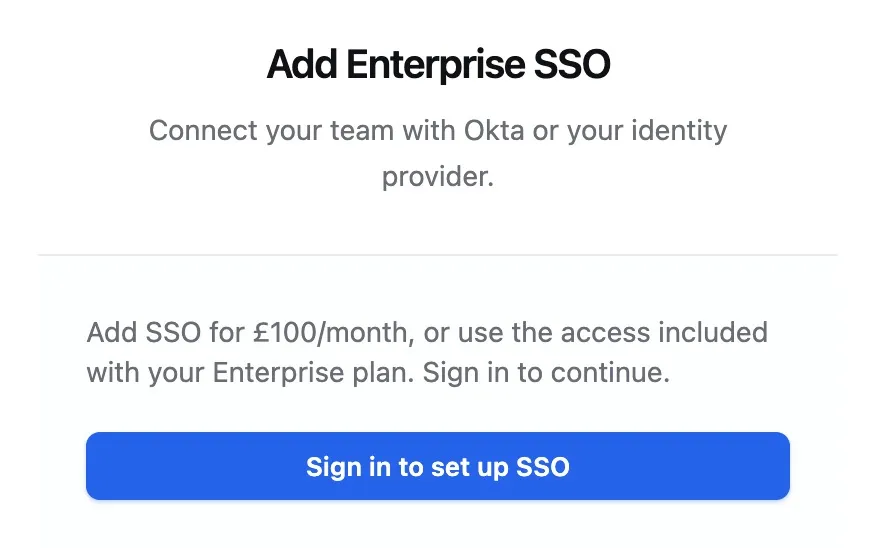
Confirm which company email domain your users will sign in with and who administers Okta. AdManage will confirm domain ownership and share two values specific to your WorkOS connection.
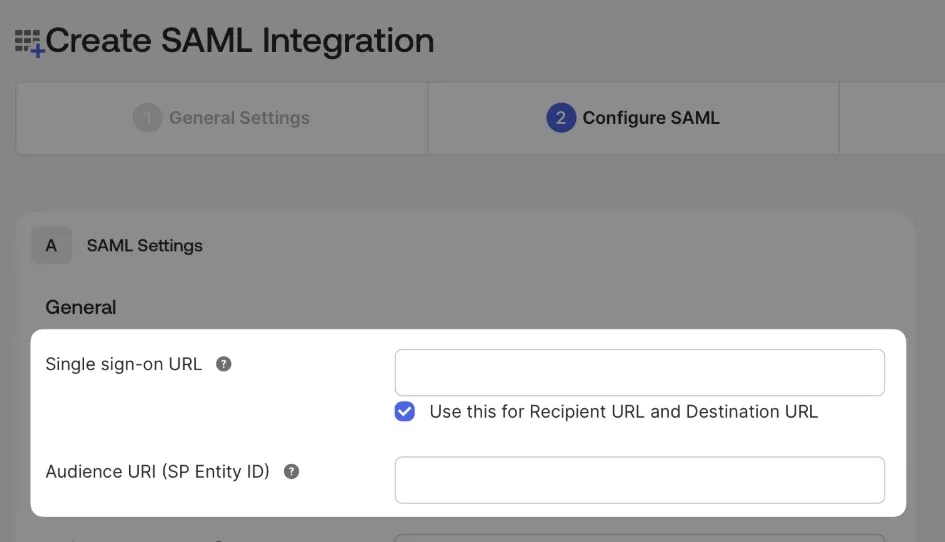
| AdManage provides | Where it goes in Okta |
|---|---|
| Assertion Consumer Service (ACS) URL | Single sign-on URL |
| Service Provider (SP) Entity ID | Audience URI (SP Entity ID) |
2. Configure the SAML app in Okta
Create the app and enter your connection values
In the Okta Admin Console, open Applications, choose Create App Integration and select SAML 2.0. If Okta asks which setup experience to use, choose Classic experience. Name the app AdManage.
On Configure SAML, paste your ACS URL into Single sign-on URL and your SP Entity ID into Audience URI (SP Entity ID). Finish creating the app.
Map the four user attributes
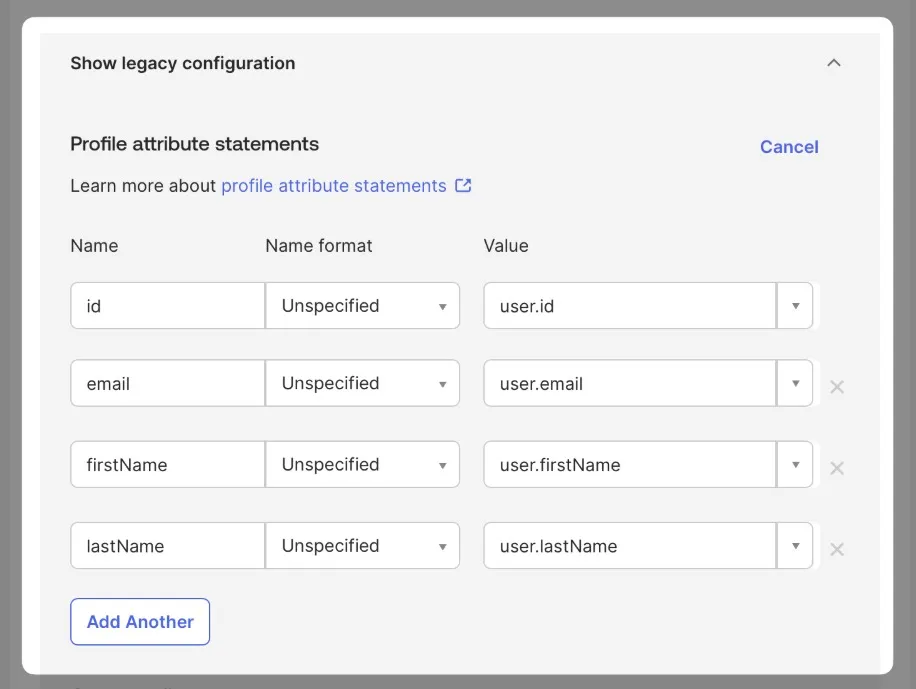
Open the app’s Sign On tab and find Profile attribute statements. Depending on your Okta settings, you may need to open Show legacy configuration and select Edit. Add the four mappings and save.
| SAML attribute | Okta expression |
|---|---|
id | user.id |
email | user.email |
firstName | user.firstName |
lastName | user.lastName |
Assign a pilot user
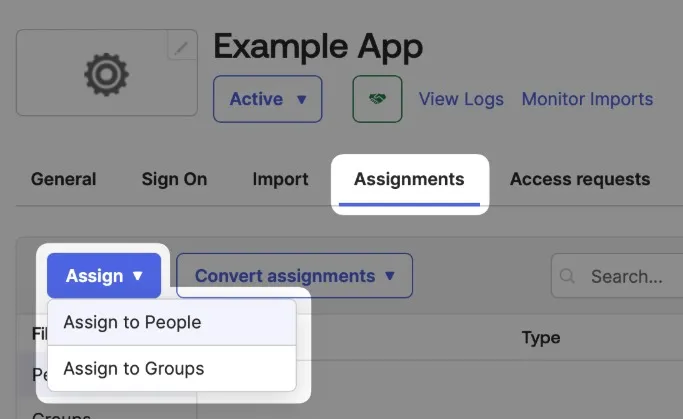
Under Assignments, open Assign and choose Assign to People for one pilot user or Assign to Groups for a small pilot group. For an existing AdManage user, confirm that their Okta email matches their AdManage email and that they already have access to the correct AdManage organisation.
See Okta’s SAML app setup instructions and WorkOS’s Okta SAML guide for more detail on the app settings.
3. Send AdManage your Okta metadata and pilot user
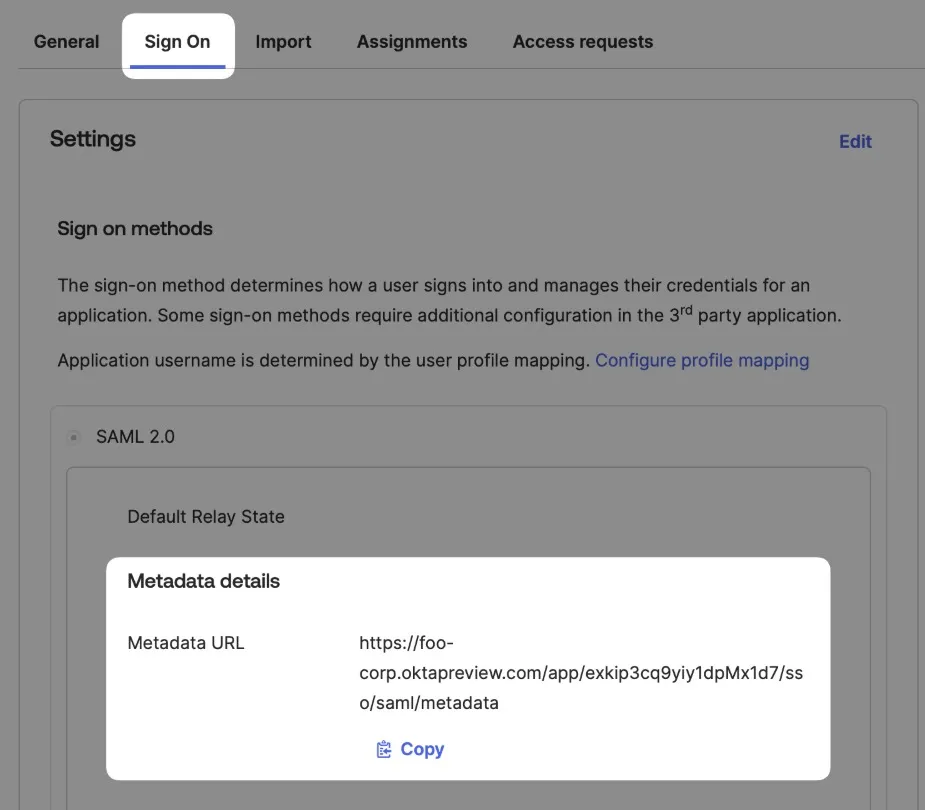
Open the SAML app’s Sign On tab in Okta. Under Metadata details, copy the Metadata URL. You can also provide the IdP metadata XML file. Send these details through your existing AdManage support conversation.
- The Okta IdP metadata URL or XML file for the AdManage app.
- The work email of the assigned pilot user.
- The company email domain and AdManage organisation the connection should serve.
AdManage uses the metadata to finish configuring the connection in WorkOS. We’ll confirm when SSO is enabled and the pilot user can test.
4. Verify sign-in and roll out to your team
- In a private browser window, open AdManage Enterprise SSO, enter the assigned pilot user’s work email and select Continue with Enterprise SSO.
- Complete Okta authentication and any MFA required by your Okta policy. Back in AdManage, confirm the user lands in the expected organisation and has the expected access.
- After the pilot succeeds, expand the Okta assignment to the users or groups who need access. Share the same AdManage SSO sign-in page with them.
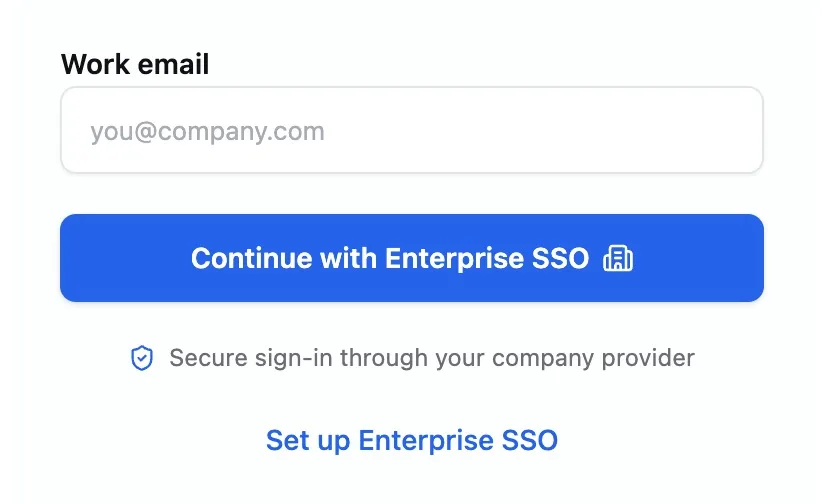
AdManage can create an account in the connected organisation on a new user’s first successful SSO sign-in. Existing AdManage users need access to that organisation before signing in with SSO. Google and email sign-in remain available alongside Enterprise SSO.
If the sign-in page says SSO is unavailable for the pilot email, confirm the domain and activation status with AdManage. If Okta denies access, check the user’s app assignment and sign-on policy. If the user completes Okta sign-in but still can’t enter the expected organisation, confirm the email and organisation membership with your AdManage admin. When escalating, share the error text, pilot email and time of the attempt with your AdManage contact.

Cedric Yarish is a Meta ads expert, performance marketer and product builder with 10+ years of experience across Photoroom, Nextdoor and MVF. At Photoroom, he led user acquisition with more than $1 million in monthly ad spend and a creative operation producing 400 ads a month across 30 languages.
Today, he leads product and engineering at AdManage, the platform he co-founded with his brother Raphael to help marketers launch, test and manage ads at scale. Meta has quoted him on its developer blog and invited him to speak on its Partner API Panel in New York. His insights on creative testing and advertising automation have also featured in RevenueCat and In Growth We Trust.
Full founder bio & interviews