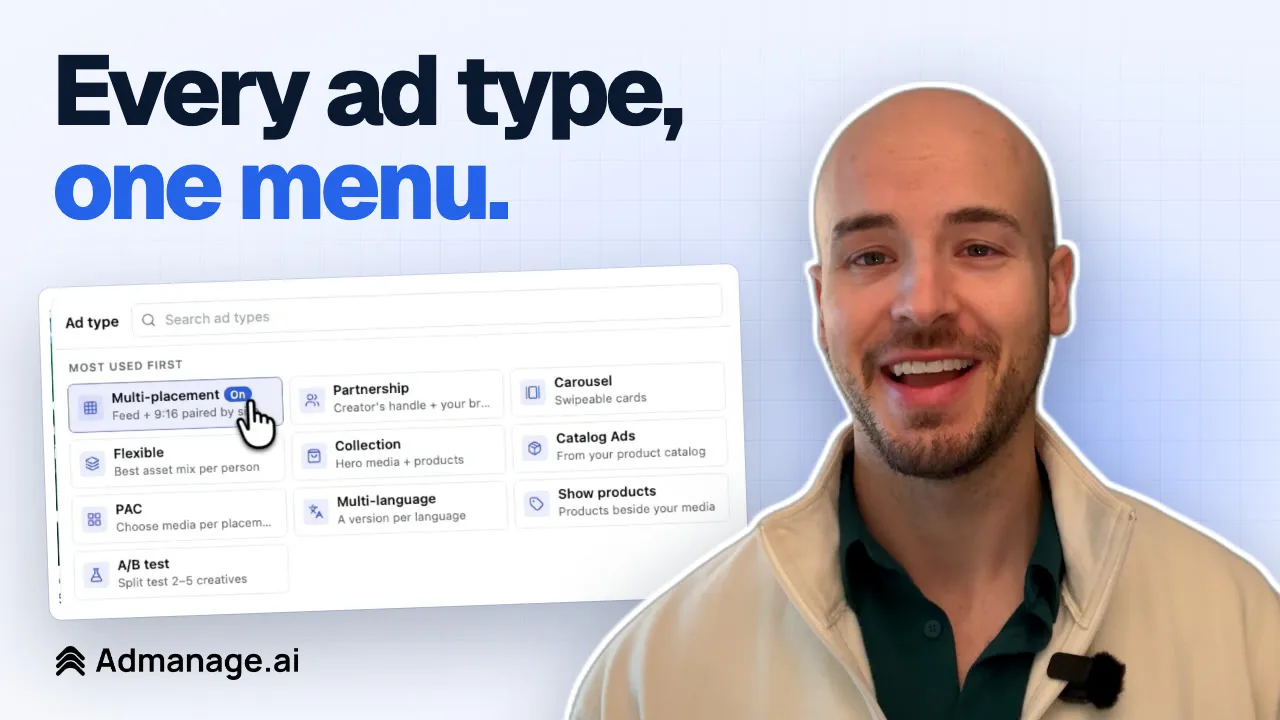

Show products keeps your own image or video as the ad and adds products from your catalog alongside it. This tutorial walks through the whole setup in AdManage, from choosing the ad type to making it the default for every launch. Watch the video, or follow the steps and screenshots below.
What Show products does
You still run the creative you made, with your own copy and landing page. Show products gives people who like the ad a direct way to shop related items from your catalog, without you building a separate catalog ad.

Meta ran a scale test of the feature. On average, advertisers using Show products saw a 10.8% higher conversion rate, a 5.7% higher click-through rate and a 9.3% lower cost per acquisition compared with single media ads. These are Meta's averages across advertisers, so your own results will vary.
Meta decides when to show products and which layout to use, so they won't appear on every impression. People who tap a product go to that product's page on your website.
What you need before you start
- A catalog in Commerce Manager with at least four products.
- A single image or video ad. Show products adds to your own media, so it isn't for carousels or catalog ads.
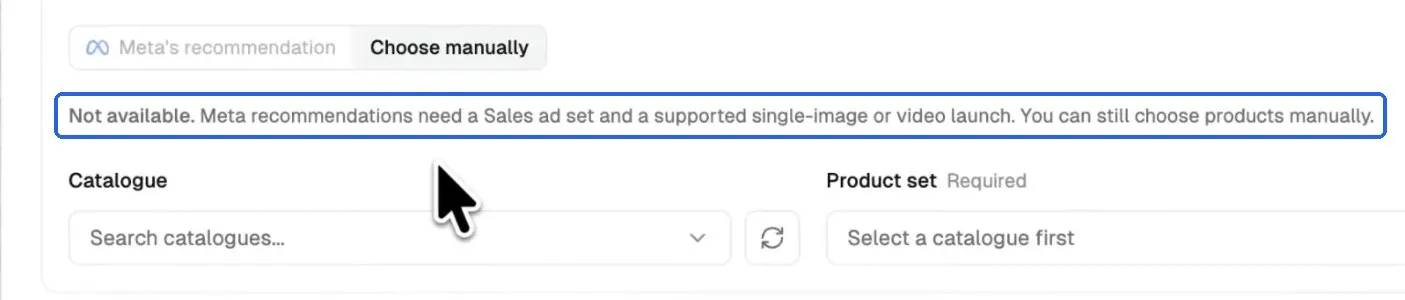
- A Sales ad set, if you want Meta's recommendation. Meta only recommends a product set for a Sales ad set with a supported single-image or video launch. In other cases you can still choose the products yourself.
If the recommendation isn't available, AdManage tells you why in the dialog:
Step 1: Load your image or video
On the launch page, load your media as usual. Your ad appears in the Ads panel, with the Ad type button at the top right of that panel.
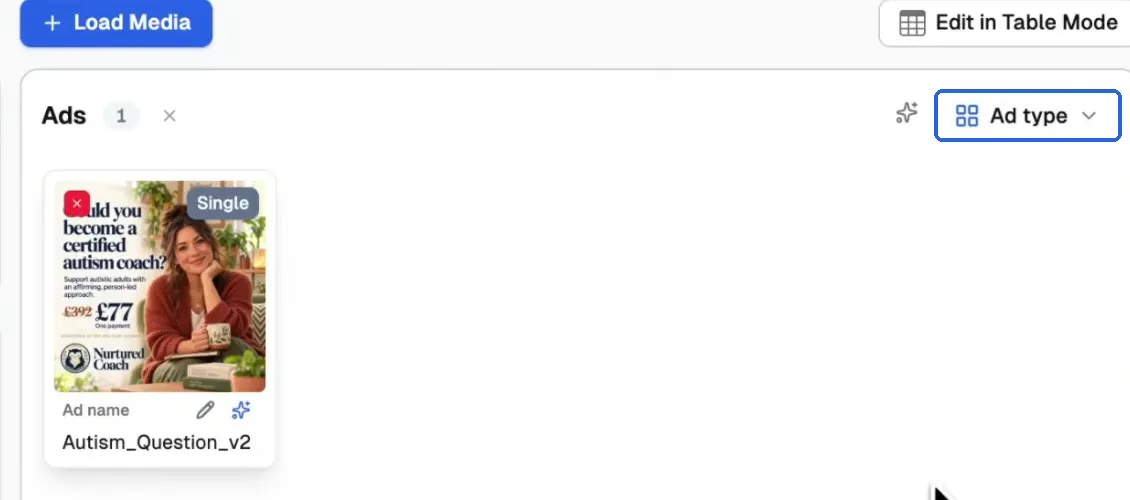
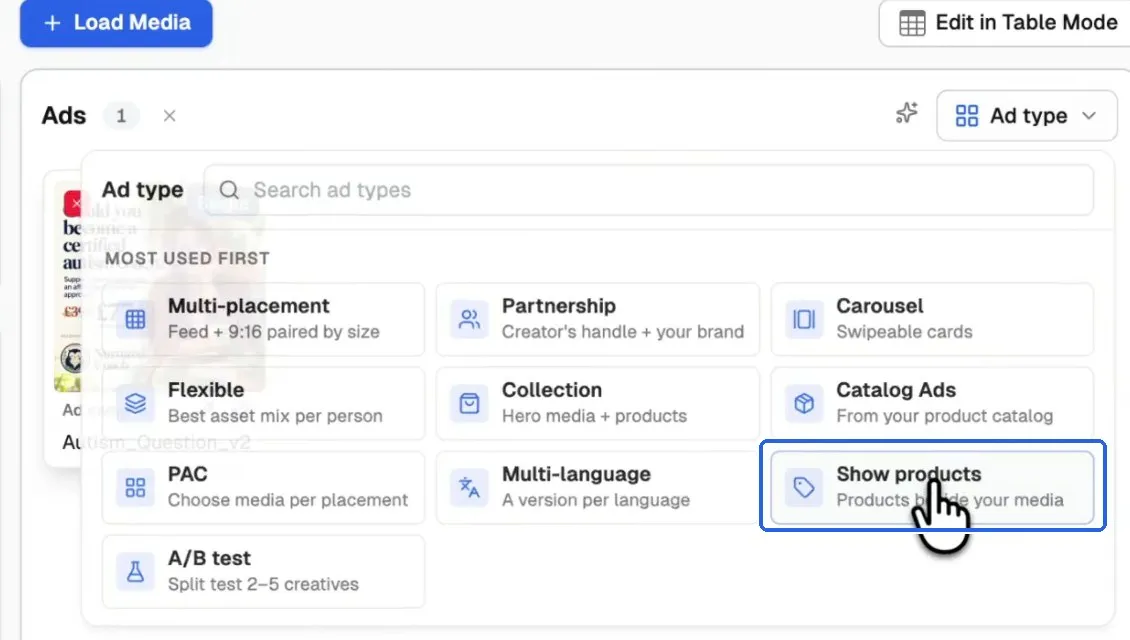
Step 2: Open Ad type and choose Show products
Click Ad type, then choose Show products, listed as "Products beside your media". Show products stays off until you choose it and save.
Step 3: Review Meta's recommended product set
AdManage asks Meta which product set it recommends, so you don't have to dig through your catalogs. The recommended catalog and set appear in the dialog, with the products that are in it.
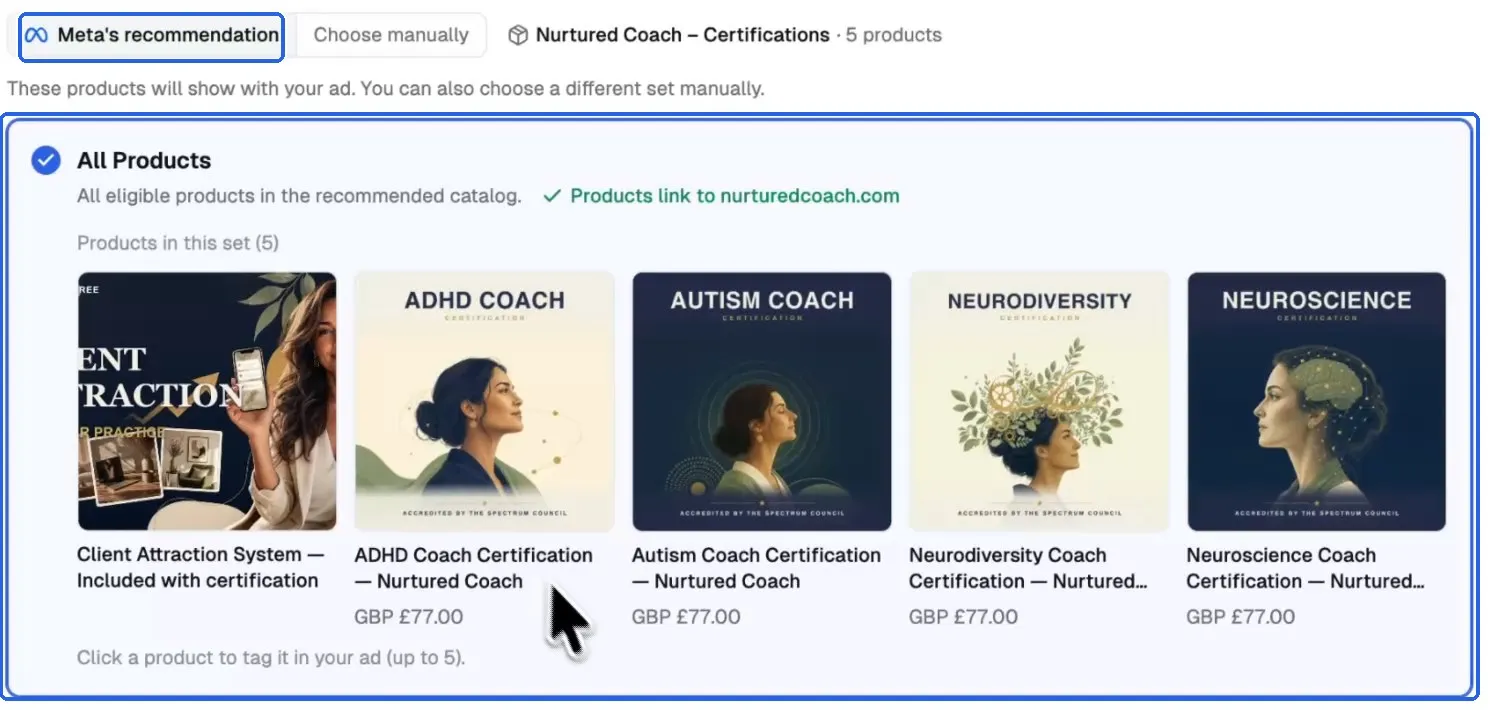
Check two things here:
- The products make sense for this ad. These are the items Meta can show next to your creative.
- The products link to your site. The dialog confirms which website the products in the set link to.
You can also click a product to tag it in your ad, up to five.
Prefer your own products? Choose them manually
Click Choose manually, then pick a Catalogue and a Product set. Use this when you want to promote a specific range, or when Meta's recommendation isn't available.
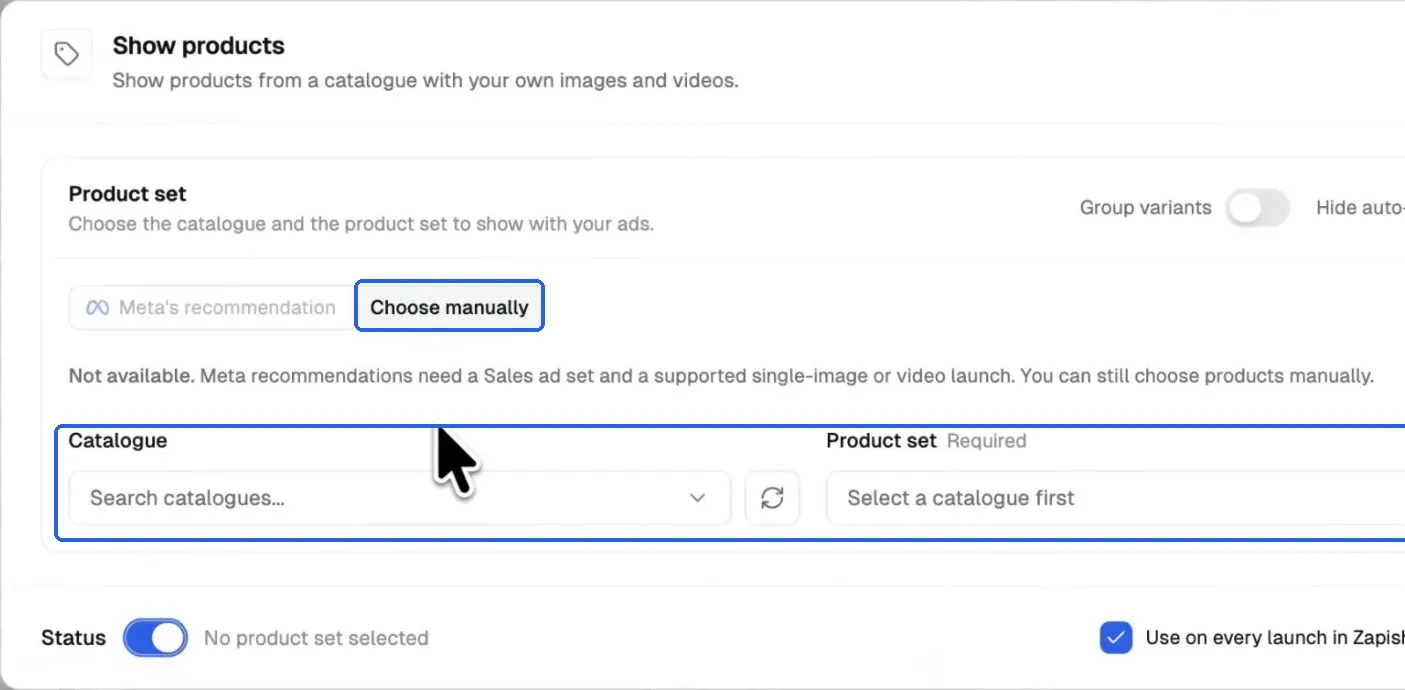
Step 4: Check it's on and save
Scroll to Display options and check the Show products toggle is on, then click Save. Your image or video doesn't change: Meta adds products from this set below it.

Back on the launch page, the Ad type button now shows "1 on", and Show products is marked On in the menu. That's your quick check that it's set for this launch.
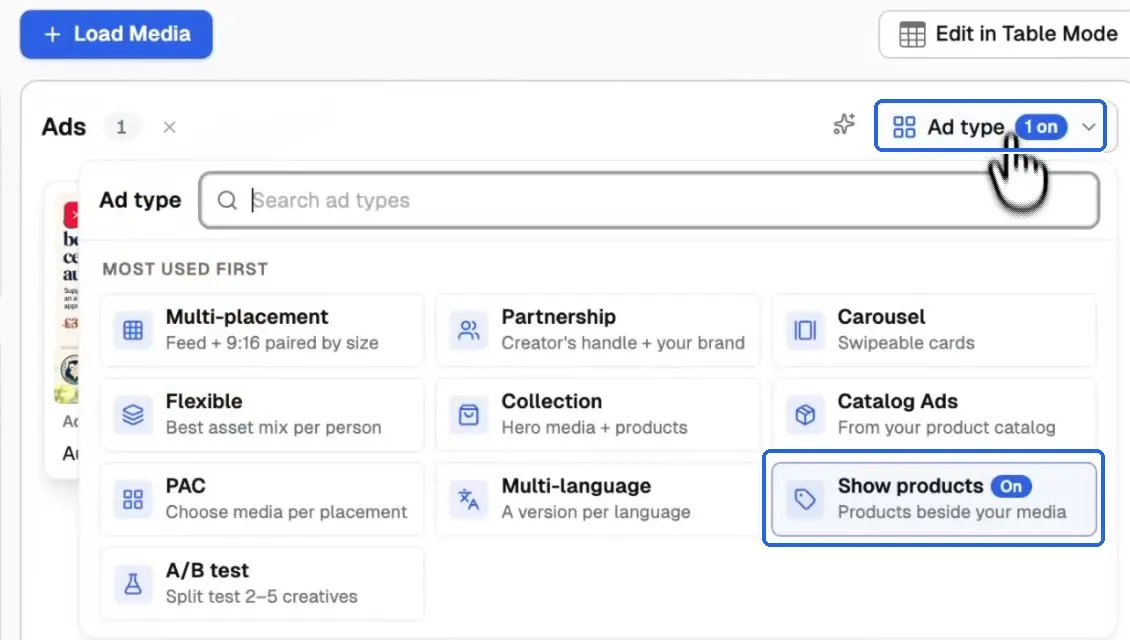
Step 5: Launch
Preview the ad if you'd like, then click the launch button. If Meta has no match for your ad, the ad still launches, just without products.
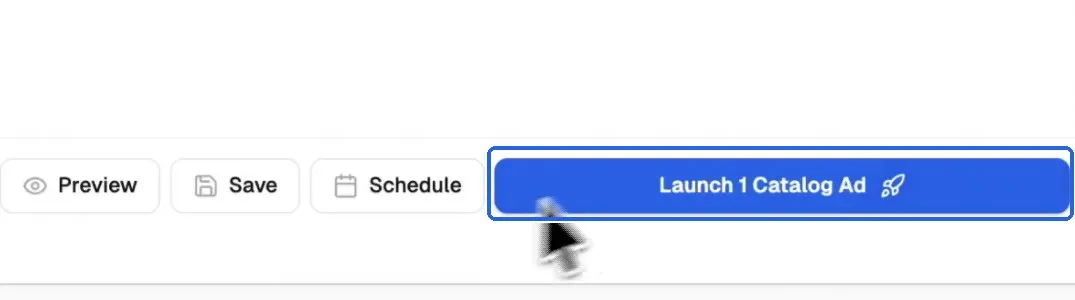
When the launch finishes, the ad preview shows a Show products row with your catalog's name. Click View Meta Ads Manager to open the ad in Meta.

Step 6: Check it in Ads Manager
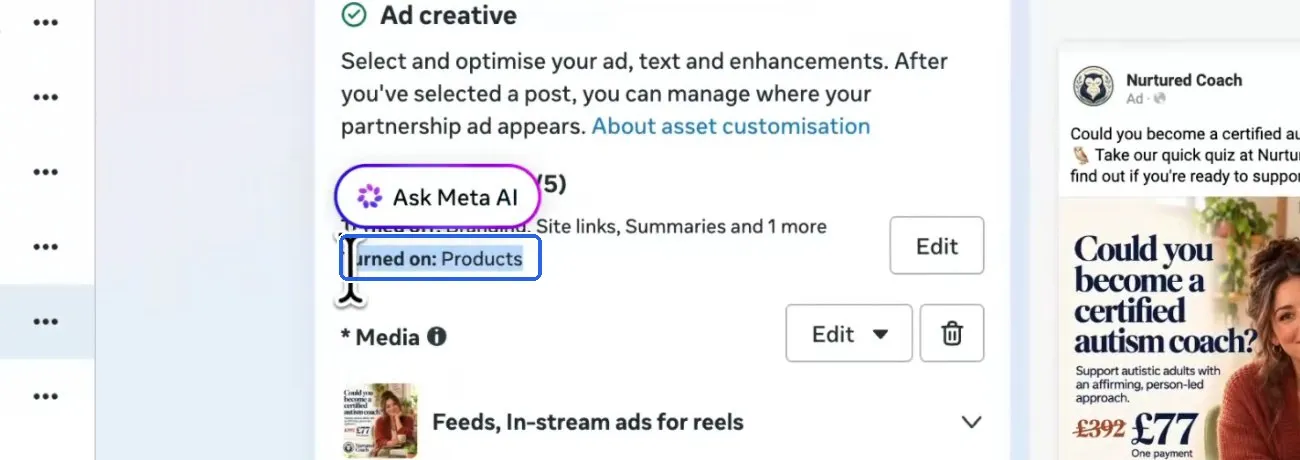
In the ad's Ad creative section, look for Turned on: Products under Creative setup.
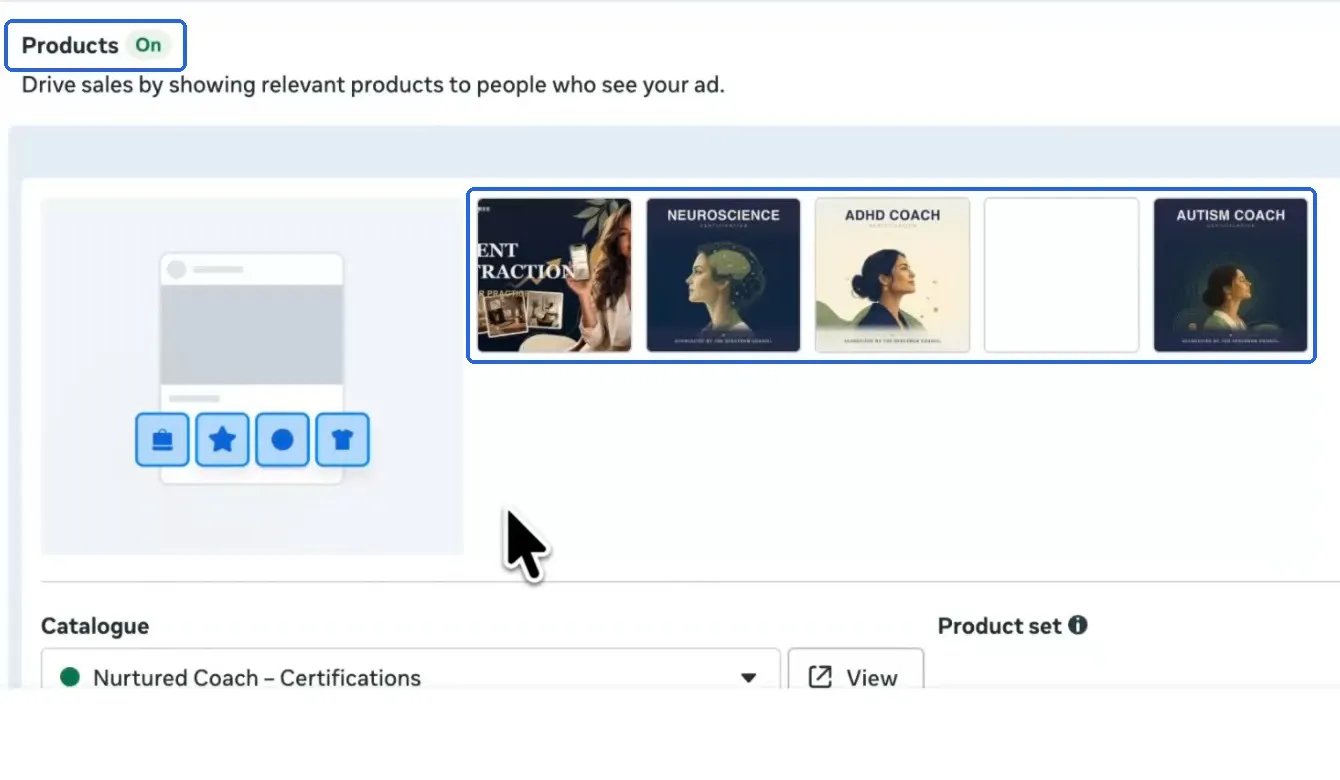
Click Edit next to Creative setup to see the details. Products shows as On, with your products and the same catalog you picked in AdManage.
Turn on Show products by default
Show products is off by default. If you want it on every launch, change one setting and you won't need to repeat the steps above.
- Click the settings icon next to your ad account at the top of the launch page.

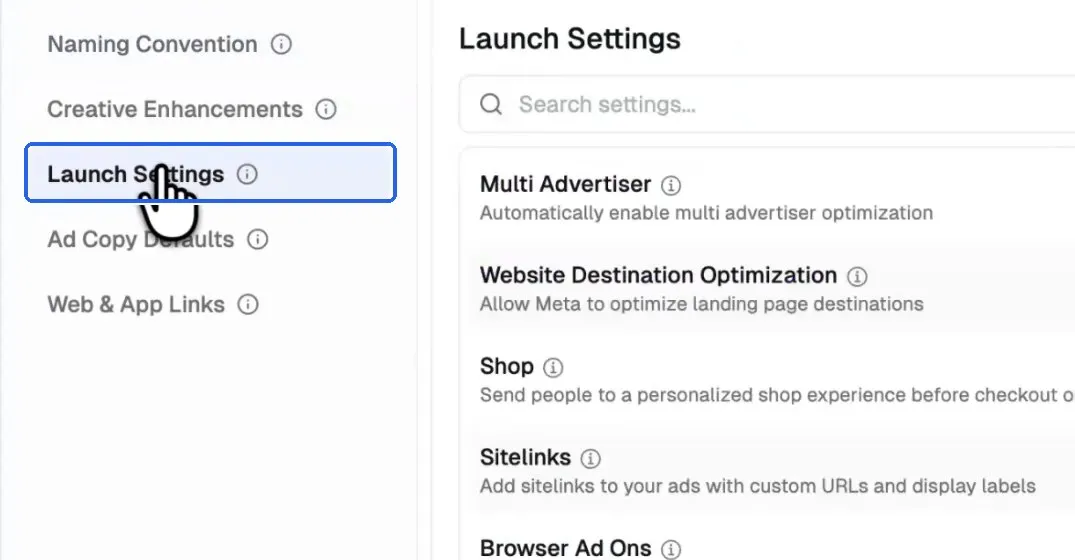
- Open Launch Settings.
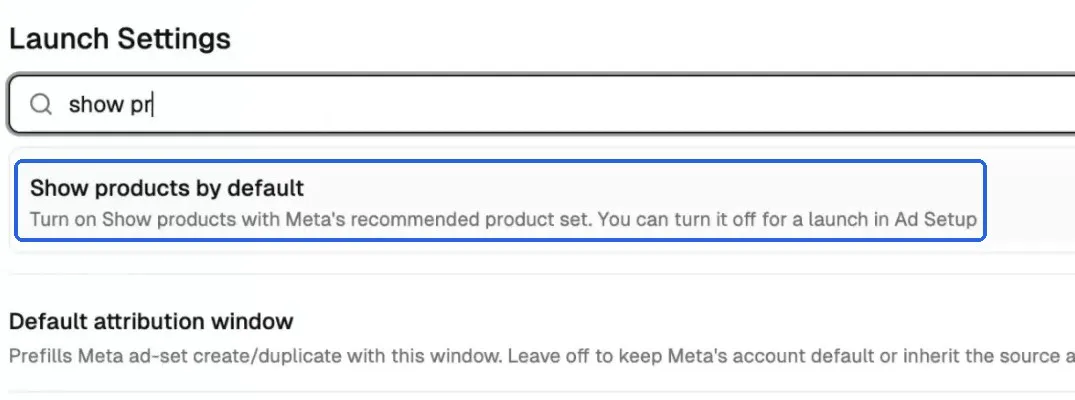
- Search for "show products" to find Show products by default.
- Turn the toggle on, then click Save Changes.
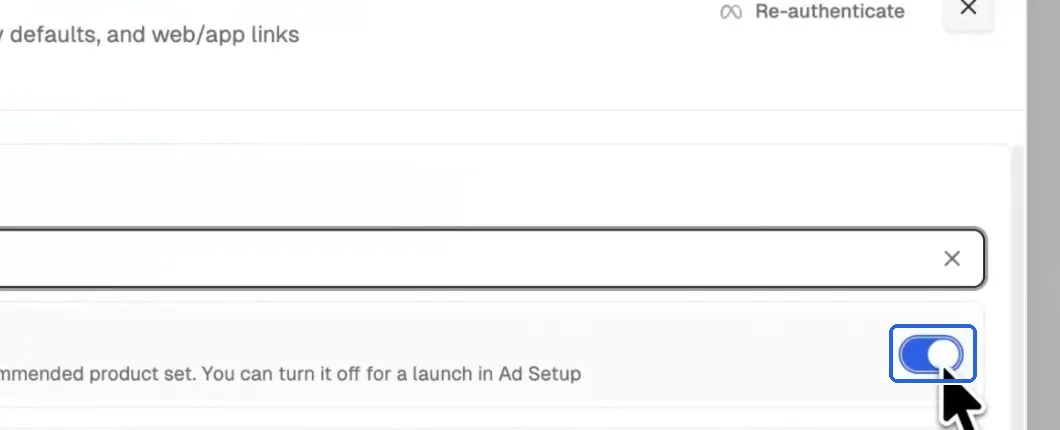
Your future launches then start with Meta's recommended product set.
Change it for one launch
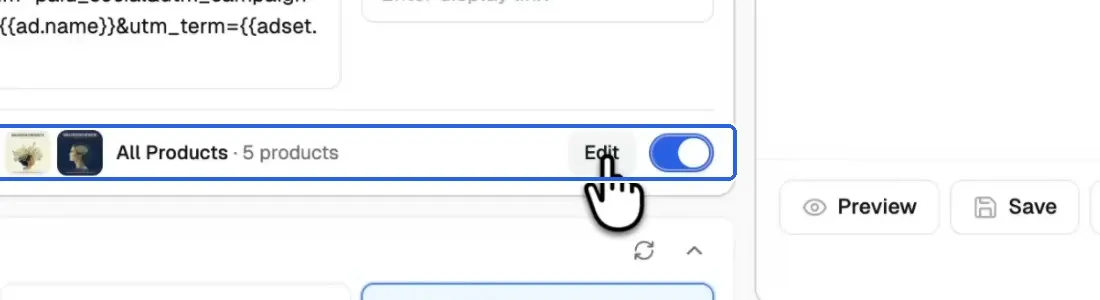
You can still change it for any single launch. In Ad Setup, the Show products row shows the product set in use: click Edit to change the products, or use the toggle to turn it off for that launch.
Frequently asked questions
Why don't I see products on every impression of my ad?
Meta decides when to add products and which layout to use. Products only appear on Facebook and Instagram Feed, Stories and Reels.
Why does it say Meta's recommendation isn't available?
Meta's recommendation needs a Sales ad set and a supported single-image or video launch. You can still choose a catalog and product set yourself with Choose manually.
What happens if Meta has no match for my ad?
The ad still launches, just without products.
How is this different from catalog ads and collection ads?
Catalog ads are built from your catalog. Collection is a hero image or video plus products. Show products keeps your own image or video and adds products beside it or underneath it. See our guide to how Show products, catalog ads and collection ads fit together.
Try it on your next launch
Open Ad type on the launch page and choose Show products, or turn it on by default in Launch Settings. New to AdManage? Start a free trial.

About the author
Cedric Yarish
Co-founder of AdManage.ai