
Every ad format in AdManage starts from one place: the Ad type menu. This tutorial shows how to set up the four you'll use most, in the order they appear in the video.
Where to find Ad type
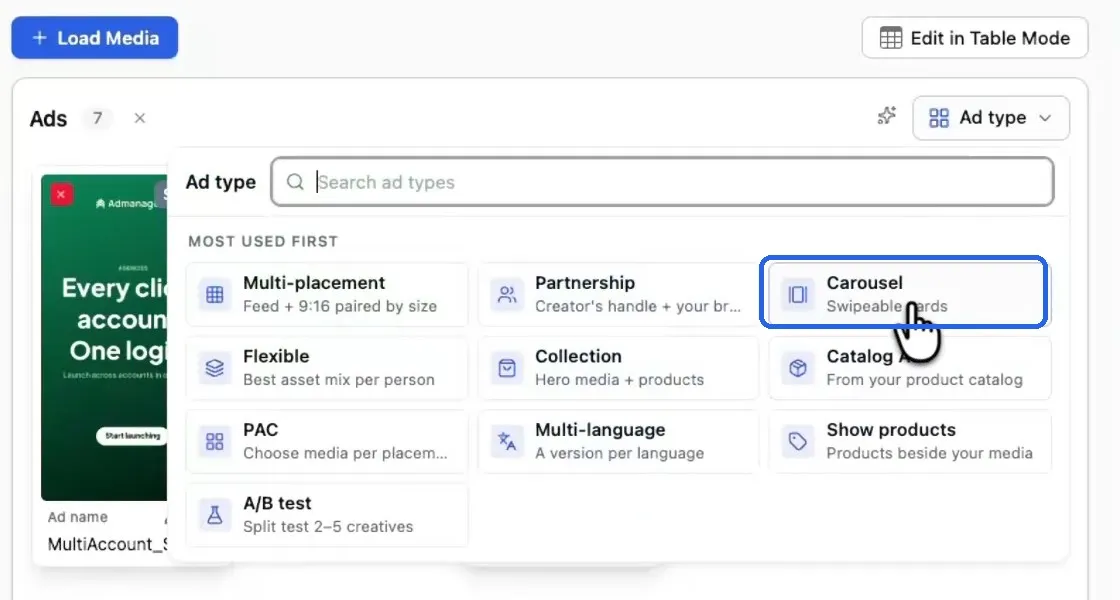
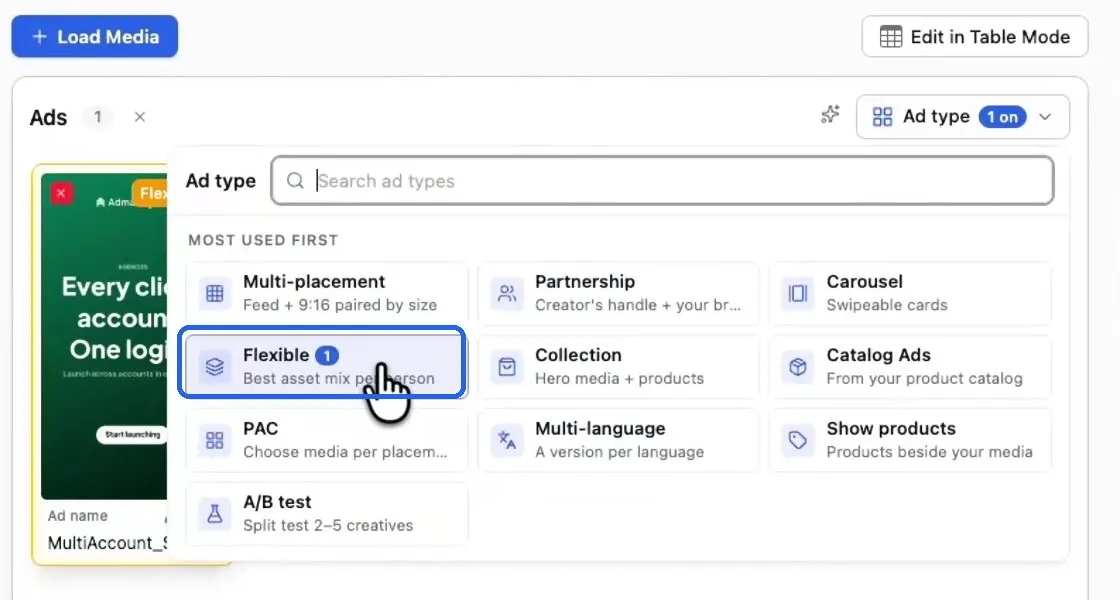
Load your media on the launch page, then open Ad type at the top right of the Ads panel. The menu lists your most used formats first, and you can search it if you know what you want.
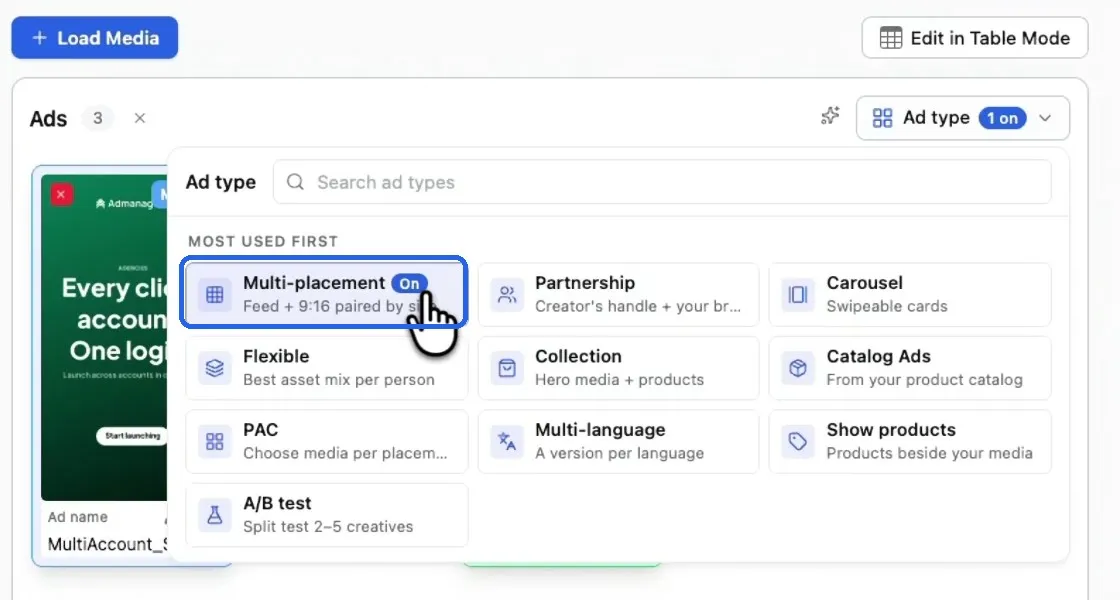
The menu has ten options:
| Ad type | What it does |
|---|---|
| Multi-placement | Pairs the feed and 9:16 versions of a creative into one ad |
| Partnership | Runs the ad with a creator's handle alongside your brand |
| Carousel | Turns media into swipeable cards |
| Flexible | Gives Meta a pile of assets to find the best mix per person |
| Collection | Combines hero media with products |
| Catalog Ads | Builds ads from your product catalog |
| PAC | Lets you choose the media for each placement |
| Multi-language | Creates a version of the ad per language |
| Show products | Puts products beside your media |
| A/B test | Splits a test across 2 to 5 creatives |
Multi-placement: the right size in each placement
A multi-placement ad is one ad that holds several sizes of the same creative, so each placement shows the format that fits it.
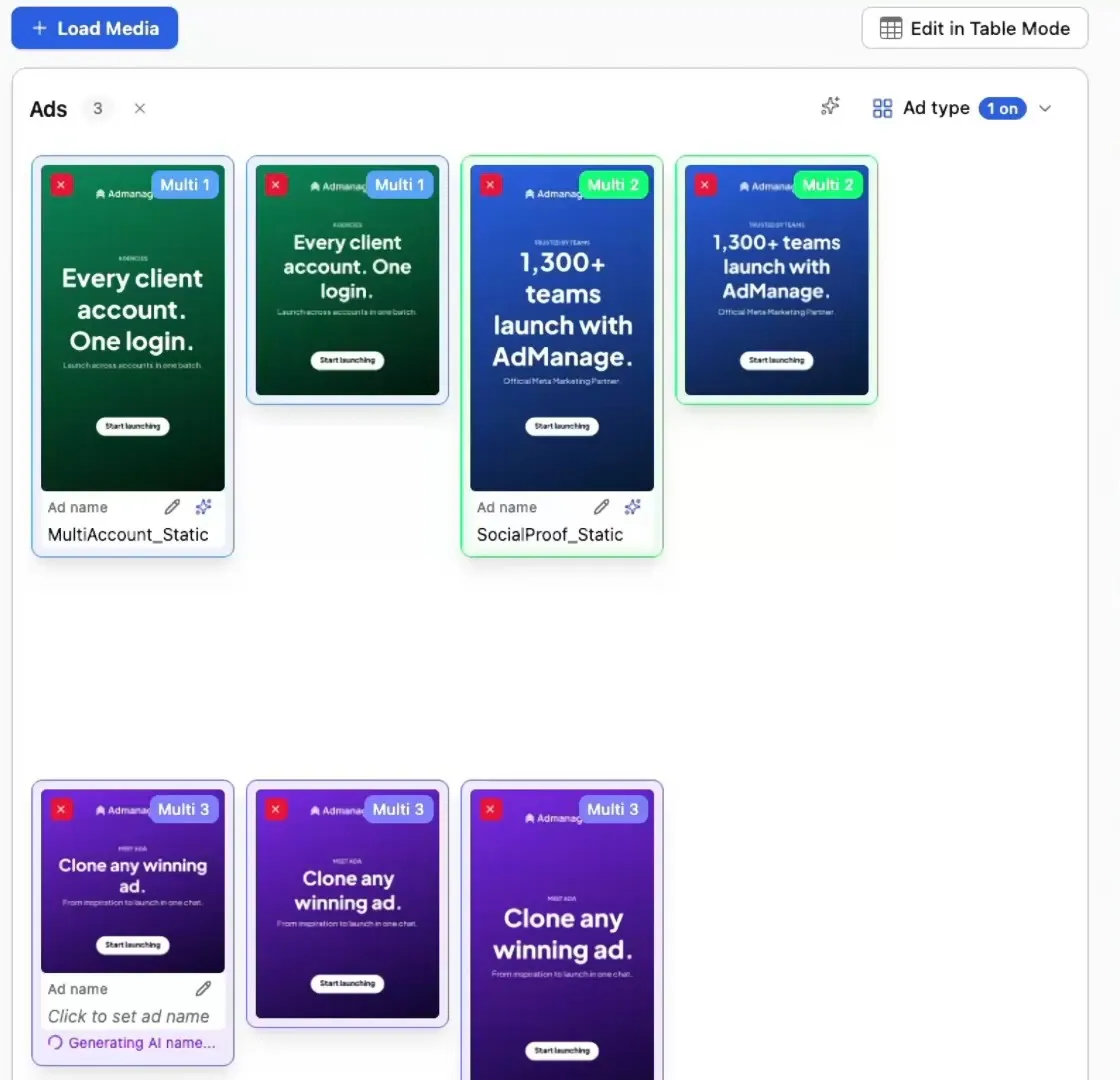
Option 1: let AdManage group them. Auto-group matches your files by name, or by how they look when the names don't help. A 9:16 and a 4:5 of the same creative land in one ad.
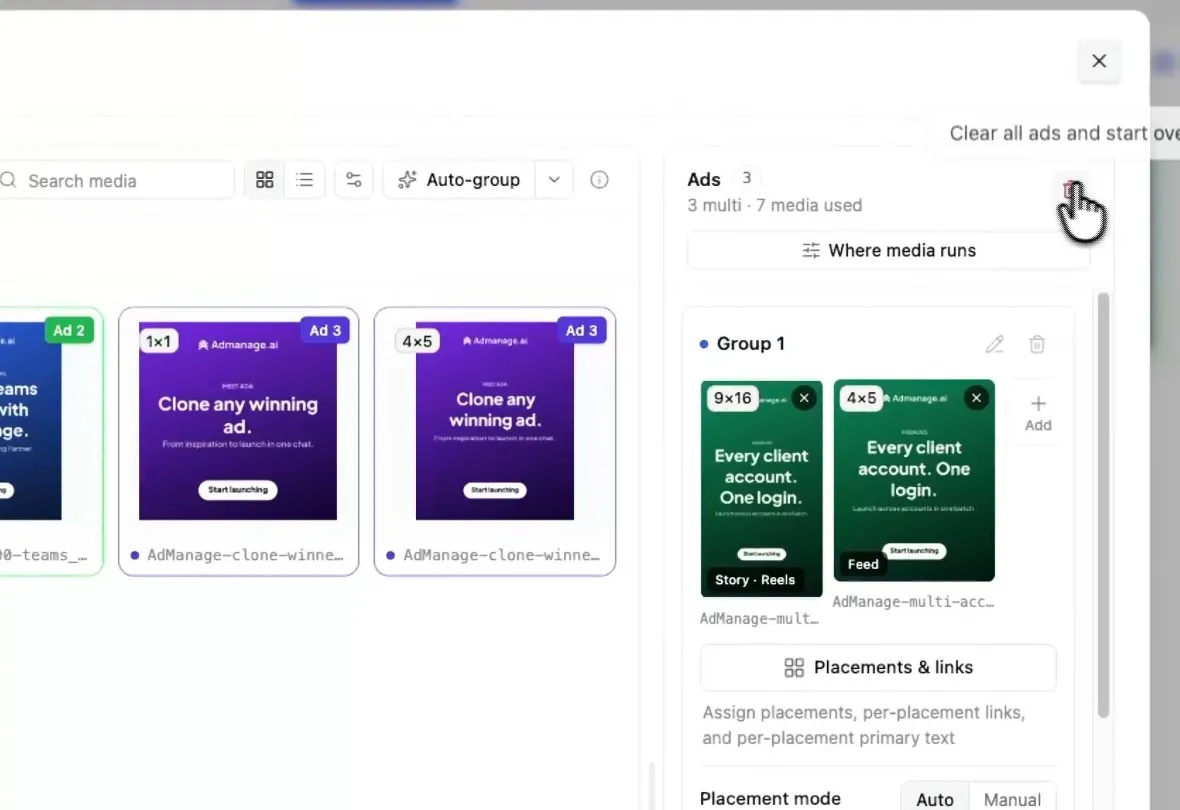
Option 2: group them yourself.
- Click Ad type, then Multi-placement.
- Select the sizes that belong together, such as your 9:16 and your 4:5.
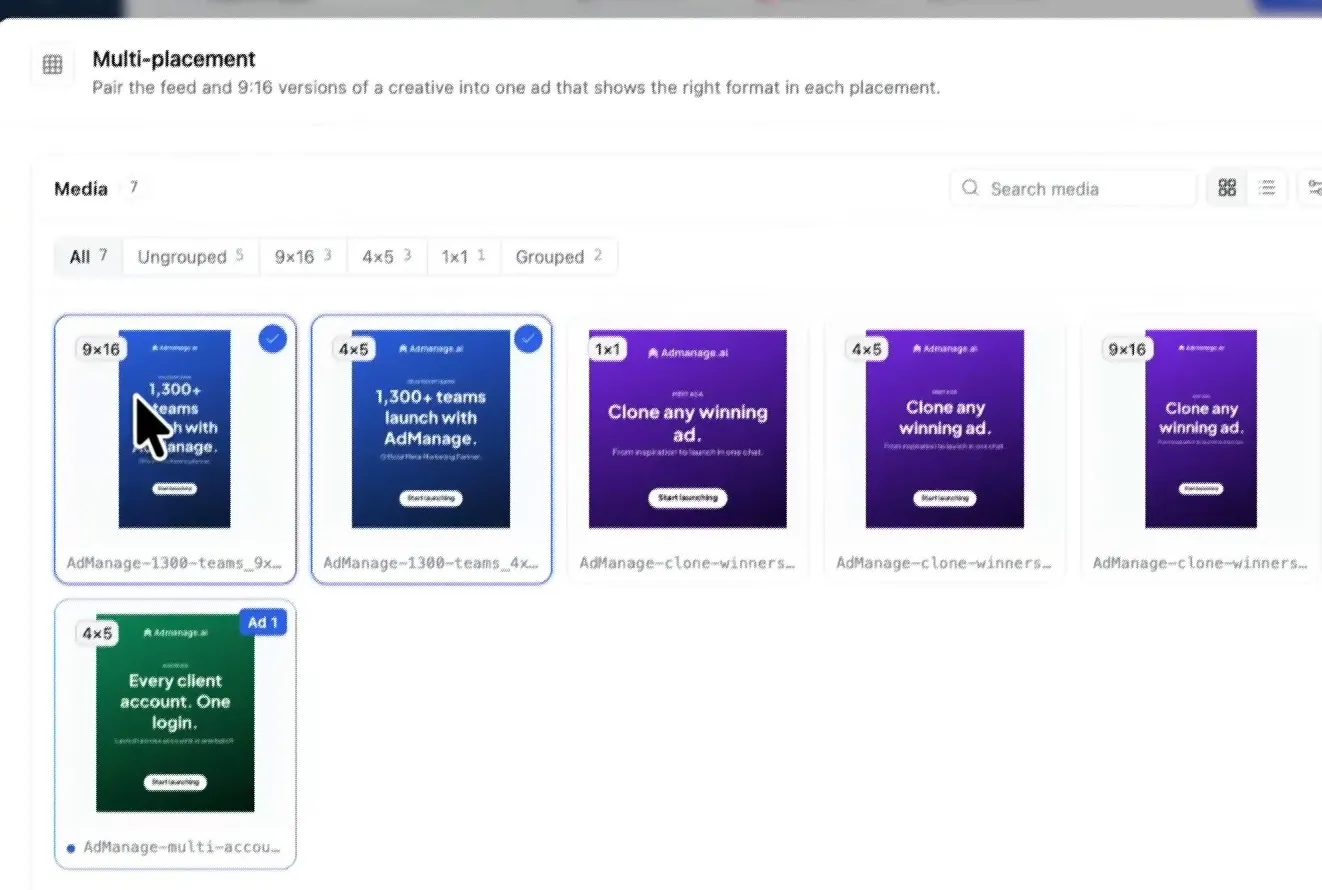
When you close the dialog, each ad carries a Multi badge, with a number that shows which ad it belongs to.
Carousel: swipeable cards
If your file names contain the word "carousel", AdManage groups those files into a carousel for you. Otherwise, build it by hand:
Step 1: Click Ad type, then Carousel.
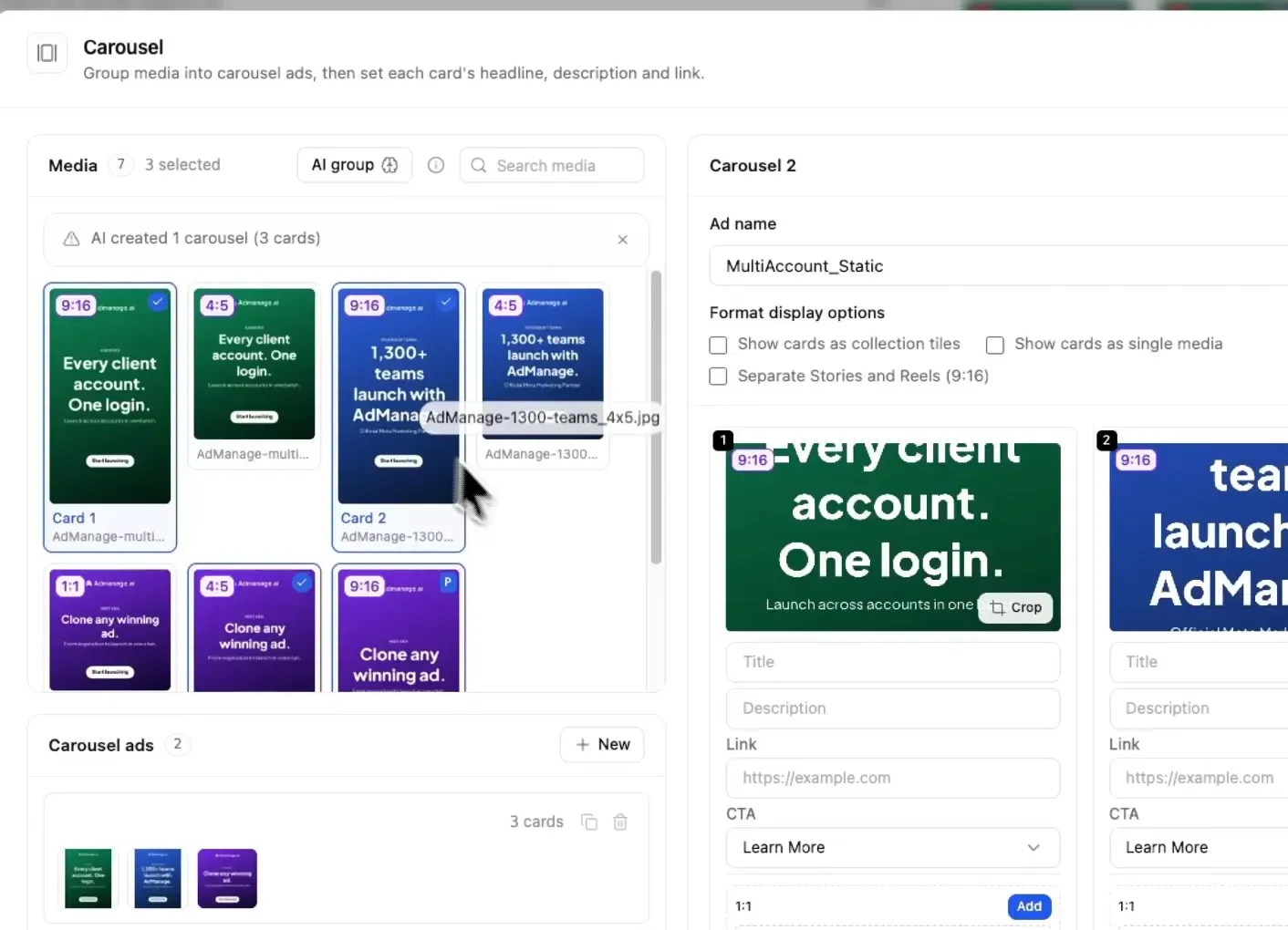
Step 2: Pick your cards, in the order you want them to appear. Each carousel gets its own ad name, display options, and a title, description, link and CTA per card.
Step 3: To avoid typing the same thing on every card, use Bulk edit cards. Choose a field (card title, card description, web link or card CTA), enter one value, and apply it to all cards.
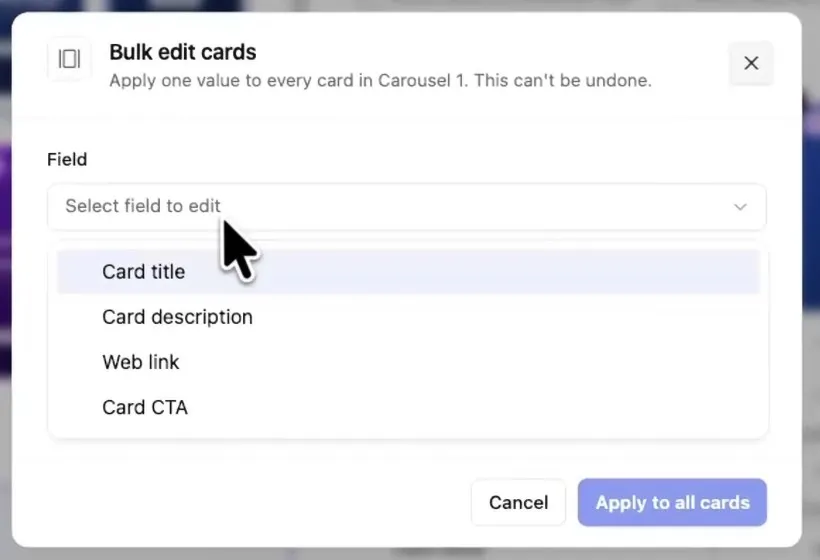
Bulk edit can't be undone, so check the value before you click Apply to all cards.
Flexible: the best mix per person
With a flexible ad, you give Meta a pile of assets and it finds the best mix for each person.
Step 1: Click Ad type, then Flexible.
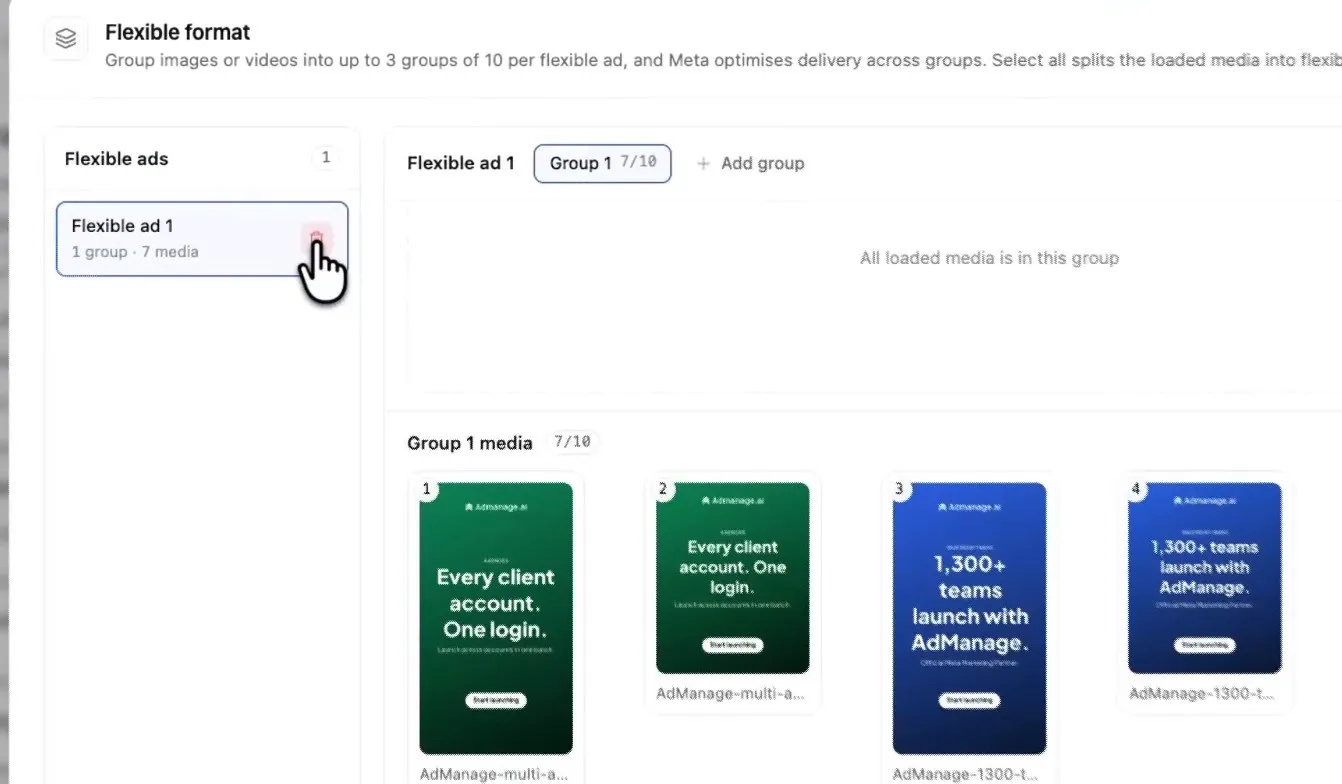
Step 2: Add your media to a group. Each flexible ad holds up to 3 groups of 10 images or videos, and Meta optimises delivery across the groups. Select more media and click Add group if you need another one.
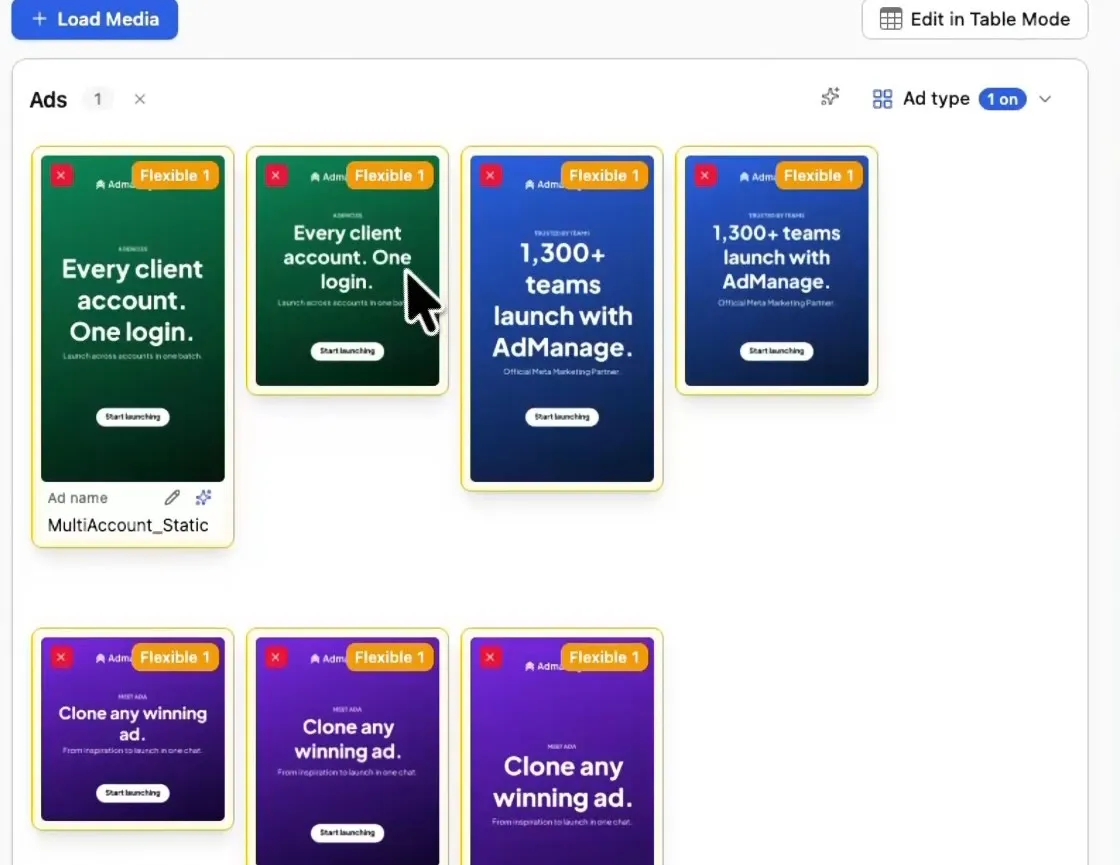
Step 3: Check the badges. Every asset shows a Flexible badge with the number of the ad it belongs to, so you can see how your media is split.
Partnership: a creator's handle plus your brand
A partnership ad runs with a creator's handle alongside your brand.
Step 1: Click Ad type, then Partnership.
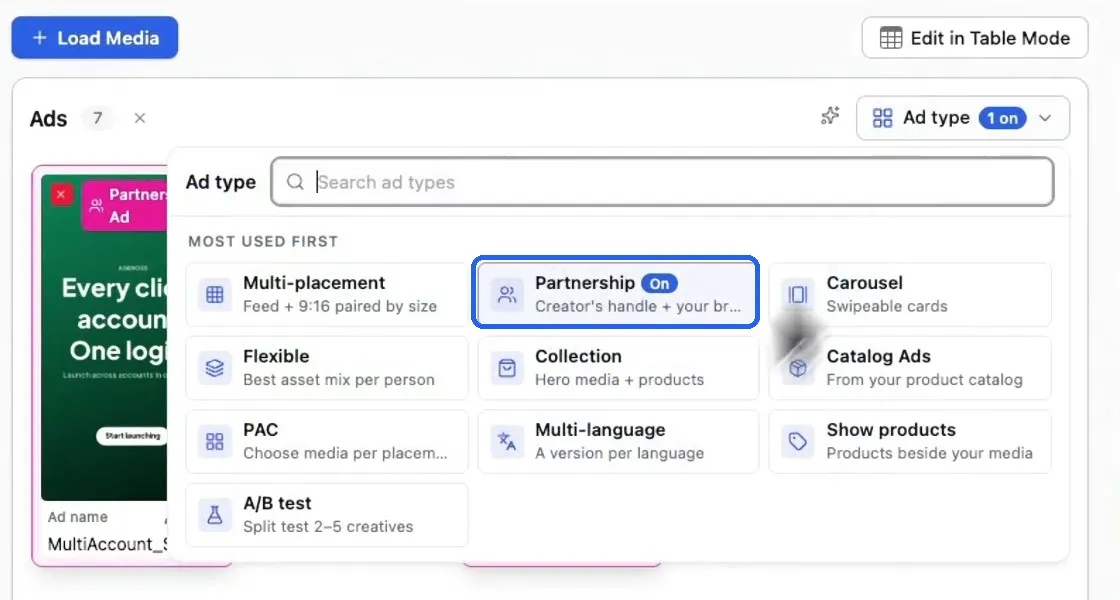
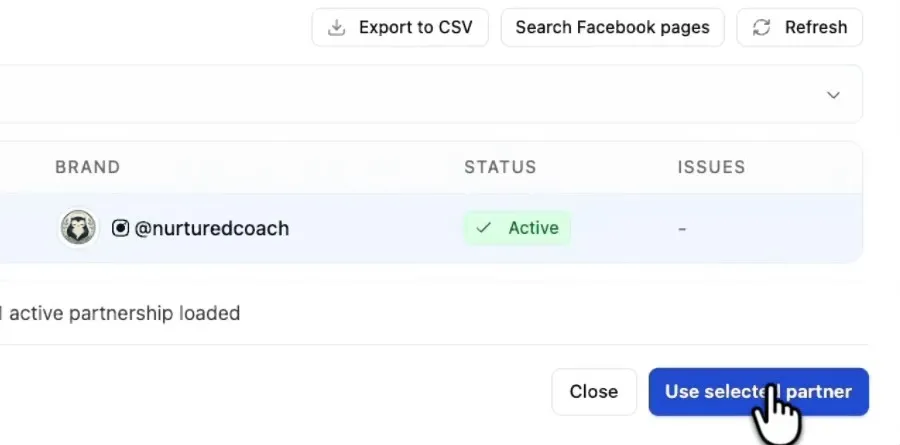
Step 2: Choose from your existing partners. The dialog lists the partnerships already active on the account with their status, and you confirm with Use selected partner.
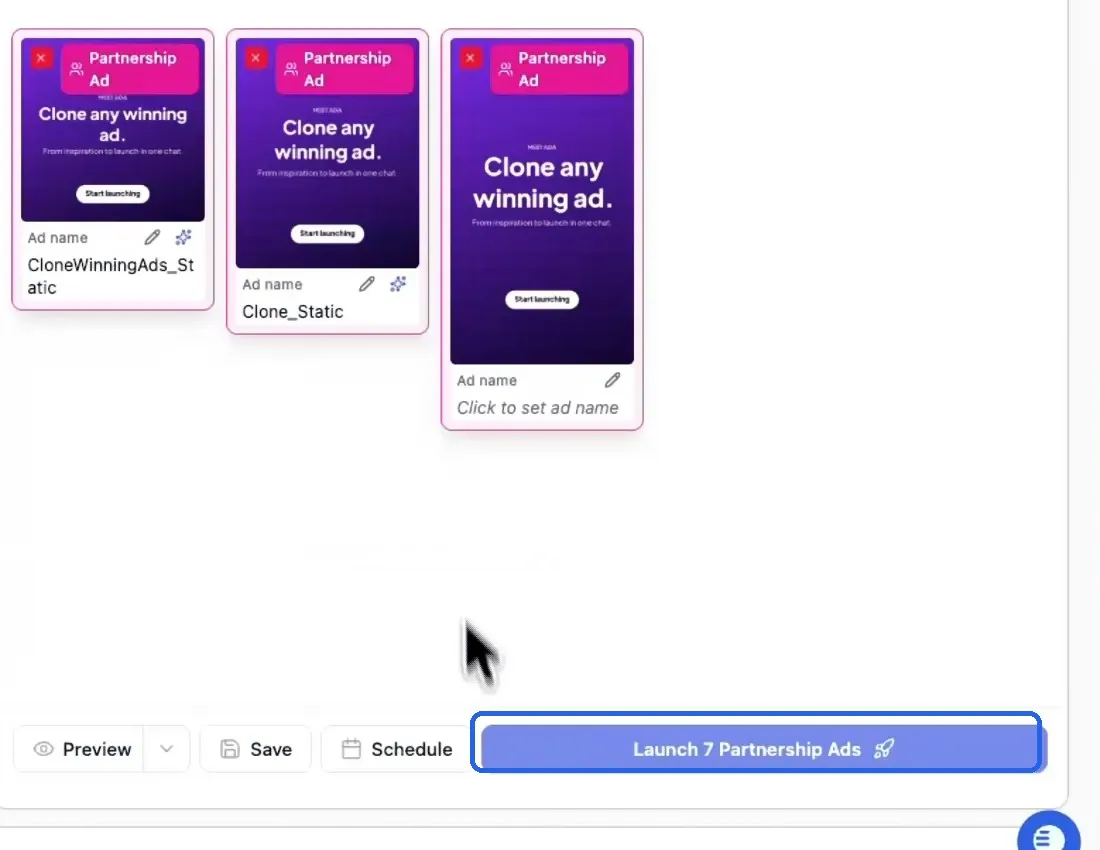
Step 3: Launch. Your media now carries a Partnership Ad badge, and the button shows how many ads will go out.
Both accounts have to approve the partnership in Meta before these ads can publish, so sort that out with your creator first.
Which one to try next
If you've only been running one format, open Ad type and try a flexible, carousel or partnership ad on your next launch. New formats add creative diversity to a campaign, and you can set each one up in a couple of clicks.

About the author
Cedric Yarish
Co-founder of AdManage.ai