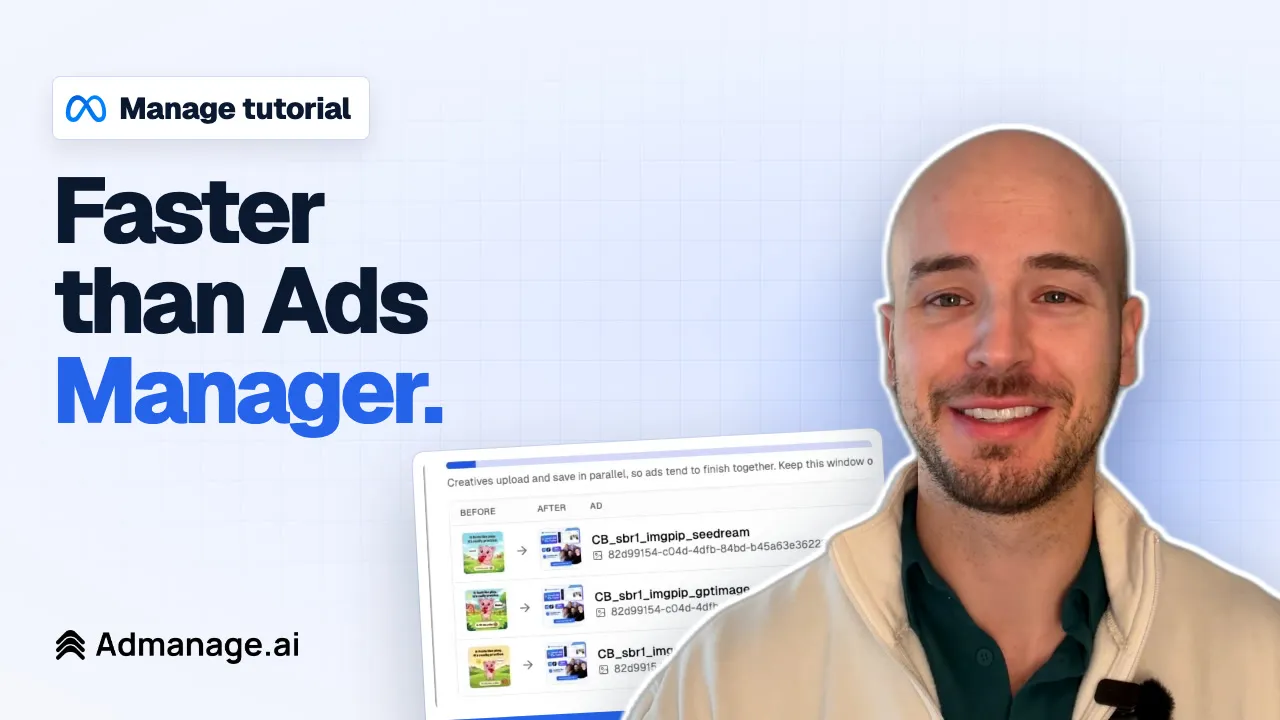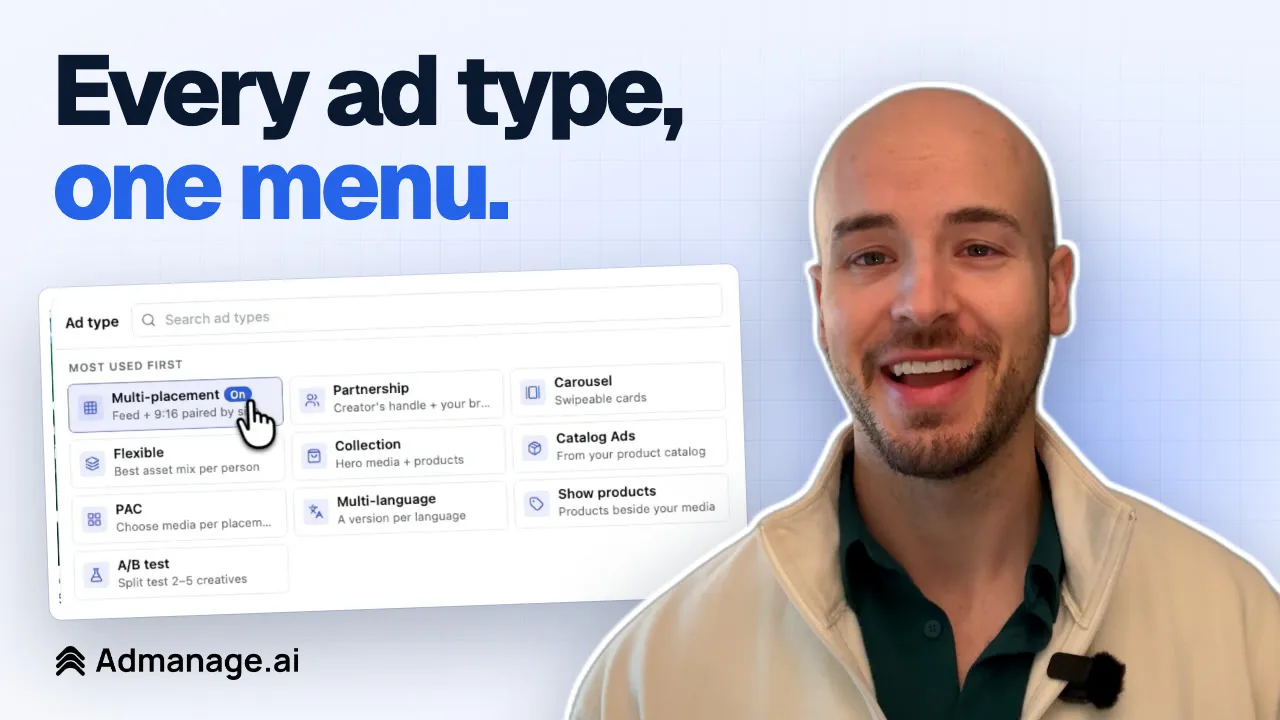

Here's the whole setup in about a minute:
AI Naming looks at each creative you upload and writes its name from what's actually in the image or video. The name then flows into your naming convention, so a file called IMG_2707.jpg launches with a name your team can read.
This tutorial covers:
- Adding the AI name to your naming convention
- Uploading creatives and getting them named
- Choosing the categories that go into the name
- Testing your setup before you use it
- Regenerating or editing a name
- Finding your ads by name afterwards
Why file names cause problems
Creatives usually arrive with whatever name the editor, the export tool or the download gave them. Those names end up in your ad account, and they say nothing about the ad.
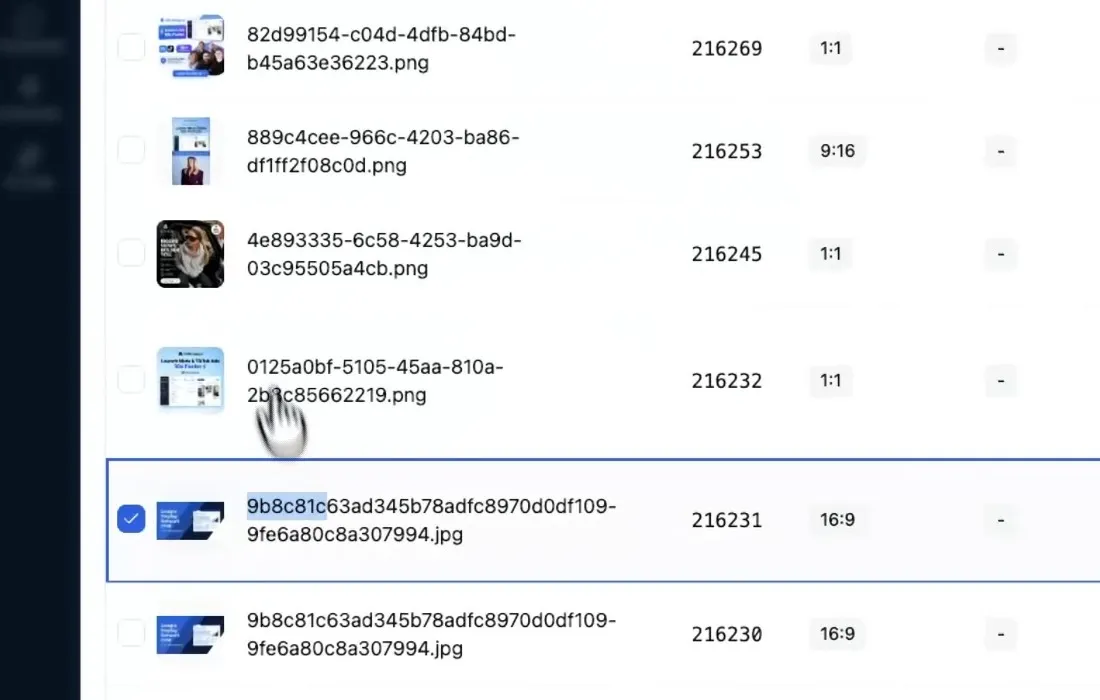
Six months later, nobody remembers what 9b8c81c63ad345b78adfc...jpg was. You can't tell which ad is which without opening it, and you can't compare creatives by hook or style when the name doesn't mention either.
Step 1: Add the AI name to your naming convention
Your naming convention is built from blocks. Some come from the launch itself, such as the date, the ad set name or the file type. The AI name is one more block.
- In the Ad Launcher, open Settings next to your ad account.
- Go to Naming Convention.
- Under Dynamic Tags, click
{{aiName}}. It's the purple one. - Check Preview, then click Save Changes.
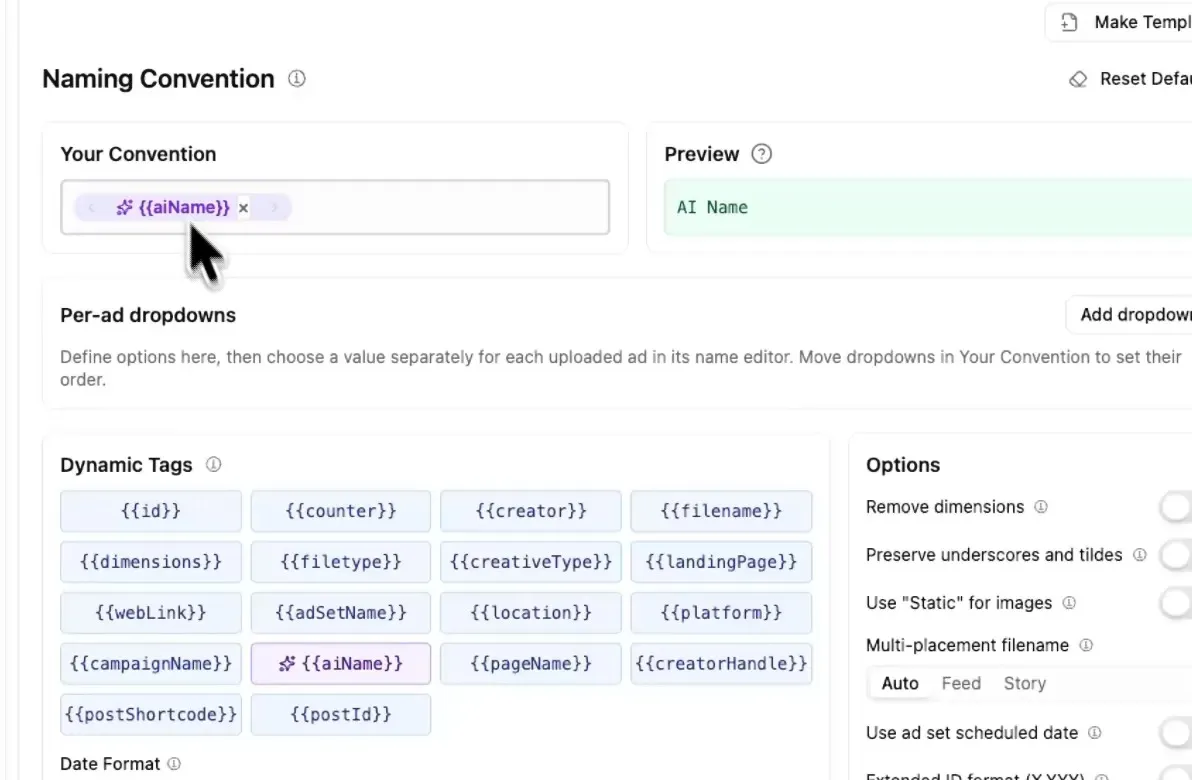
You can use {{aiName}} on its own, as in the screenshot, or combine it with tags like {{adSetName}} and {{filetype}}. Adding that one tag is what turns AI Naming on for your launches.
Step 2: Upload your creatives
Add creatives as usual, with Load Media or by dragging files onto the Ads panel. Each new card shows Generating AI name… for a few seconds, then the name appears under Ad name.
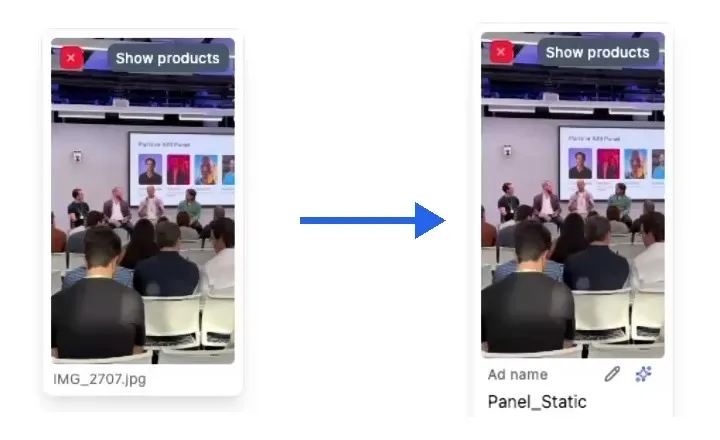
The name comes from the creative, not from the file name. This image of a conference panel went in as IMG_2707.jpg and came out as Panel_Static.
Here's a whole batch after loading. Every card now tells you something about the ad:

Step 3: Choose what goes into the name
The defaults are a starting point. You decide which categories the AI fills in, and in what order.
- On any ad card, click the sparkle icon next to Ad name.
- Click Edit schema. This opens AI File Naming.
- Each field in Filename is one part of the name. Drag them to reorder, or click Add field to add a new one.
- For each field, set Applies to (all creatives, images or videos) and the Options the AI can choose from.
- Click Save Naming Rules.
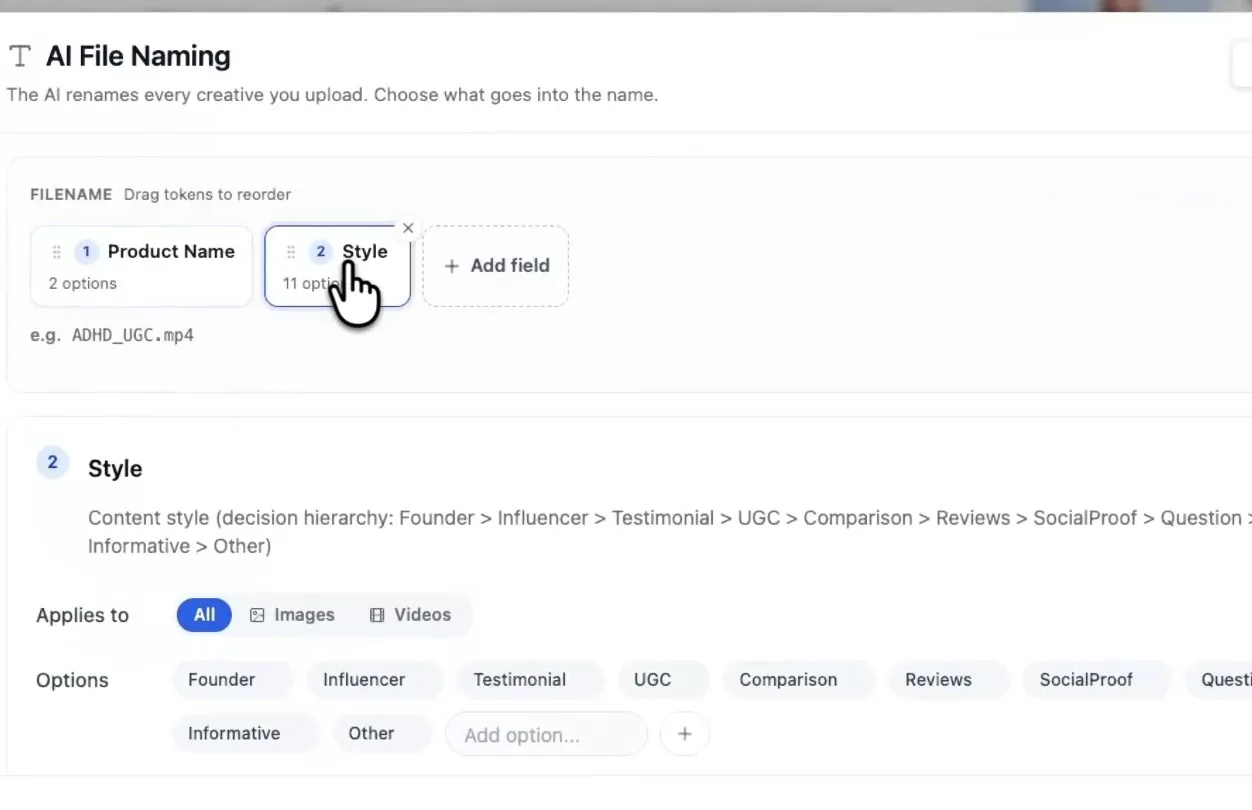
Useful fields to add:
- Style: UGC, testimonial, founder, comparison
- Asset type: static, video, carousel
- Hook: the opening angle of the ad
- Product: which product or offer it promotes
The dialog shows an example of the result as you build, such as ADHD_UGC.mp4. If you'd rather describe what you want in plain English, use Describe it in AI Chat.
Step 4: Test it before you use it
Before you rely on new rules, open the Test tab in the same dialog. Upload a creative or pick one from your library, and you'll see the name your rules produce.

If a field keeps coming out wrong, go back to Build and tighten its options.
Step 5: Regenerate or edit a name
You always have the final say. Click the sparkle icon on the card to open Edit AI name.
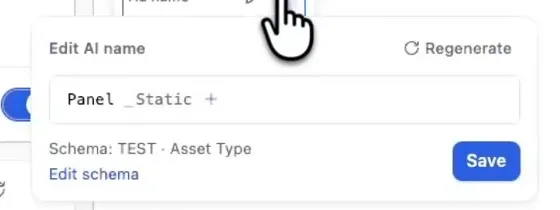
- Click Regenerate to have the AI try again.
- Edit any part by hand, then click Save.
Step 6: Find your ads by name
The name goes live with the ad, so the same readable names show up in Ads Manager.
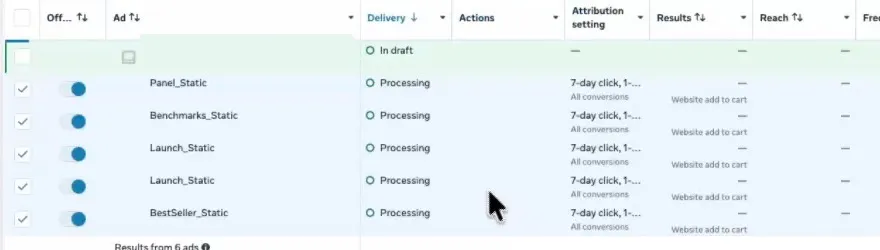
That makes two things easier:
- Searching. In Ads Manager, search for a word from the name, such as a hook or a style, to pull up every ad that uses it.
- Reporting. In AdManage reports, filter on what's in the ad to see which hooks, styles or creators are working.
The more consistent your categories are, the more useful this gets, which is why it's worth spending a few minutes on Step 3.
Where to find AI Naming
- To turn it on: Settings → Naming Convention →
{{aiName}} - To change the rules: sparkle icon on an ad card → Edit schema → AI File Naming
Want to try it? Open the Ad Launcher, add {{aiName}} to your naming convention, and upload your next batch.

About the author
Cedric Yarish
Co-founder of AdManage.ai