

Google Ads Editor is Google’s no-cost desktop application for bulk changes to downloaded Google Ads accounts. Make and review local edits, then explicitly post the intended scope. Use the official download page and check current system requirements before installation.
The expensive mistake in Editor usually isn't clicking the wrong menu. It's misunderstanding what your spreadsheet, selection, or local change set will do when it reaches the live account. A blank cell can preserve a value. Two square brackets can erase it. A row that looks like an update can create a duplicate because one identifying field changed.
At AdManage, we work on launch workflows that often begin in spreadsheets and span multiple paid-media accounts. That gives us a strong bias toward bulk operations, but also a clear view of where the native tool wins: for deliberate, Google-only account changes, Google Ads Editor is often the right tool. This guide shows you how to use it without losing local work, duplicating entities, clearing fields by accident, or posting a change set you can't explain.
| Quick answer | Current detail |
|---|---|
| Cost | No cost |
| Application type | Desktop app for downloaded Google Ads account data |
| Offline use | Local editing is available offline; retrieving current account data and posting require a connection |
| Release reference | Google publishes 2.12 release notes; check the latest supported download |
| Supported systems | 64-bit Windows 10 or later; macOS 12 or later |
| Best use | Large, staged, reviewable Google Ads changes |
| Biggest risk | Posting a broader or semantically different change than intended |
For a first session, follow Google’s six-step guide: review application settings, download the intended account, prepare changes, share for review if needed, check the result and post the selected scope. The detailed sections below explain imports, conflicts and recovery.
First Session: Choose a Small, Reviewable Task
| Step | Do This | What to Confirm |
|---|---|---|
| Open the right account | Select the intended account and campaigns | Customer ID and downloaded scope |
| Prepare one change | Choose a small representative group | Expected new and modified counts |
| Review locally | Inspect proposed and all unposted changes | Only intended fields and objects changed |
| Check and approve | Resolve errors and review warnings | Business approval is separate from a software check |
| Post deliberately | Select the intended campaign scope | The result report and any remaining failures |
| Inspect online | Review the actual Google Ads objects | Status, settings and identifiers |
Editing a downloaded account does not publish it. Before posting, look beyond the currently filtered rows: unrelated local changes can still be queued in the account.
How Google Ads Editor separates local edits from live changes
Editor makes more sense once you stop thinking of it as a second version of the Google Ads website. It is a local working copy with an explicit publishing step.
The normal operating loop is:
- Download an account or selected campaigns.
- Retrieve recent changes.
- Make edits locally or import proposed changes.
- Review and check the local change set.
- Post all changes or a limited campaign scope.
- Inspect the posting result and verify the live account.
Google's product overview describes the core capabilities: offline work, bulk changes, search and replace, moving items, undo and redo, and sharing proposed changes for review. The crucial distinction is that editing locally isn't the same as publishing.
Think in seven states:
| State | What it means | Operator question |
|---|---|---|
| Live account | What Google Ads currently holds | What is running now? |
| Downloaded state | The account data stored locally in Editor | When was this last refreshed? |
| Recent downloaded changes | New online changes retrieved since the last sync | Did someone else change the account? |
| Unposted local changes | Edits you made in Editor | Is this diff complete and intentional? |
| Proposed changes | Rows imported or shared for review | Are they new, modified, or invalid? |
| Conflicts | Local and online edits touching the same item | Which version should win? |
| Posted state | Changes accepted by Google | Does the live account match the plan? |
This state model explains why a team can get into trouble even when every individual edit looks correct. A colleague changes a live campaign after your last download. You import a spreadsheet against stale local data. Editor identifies some rows as new. You post an account-wide change set because the current view shows only the campaign you meant to edit.
The interface reinforces that model. Your account and campaign tree controls scope. The type list controls which entity you see. The data view shows the selected rows. The edit panel changes their shared fields. Filters can make the current view look narrower than the full local diff, which is why the All unposted changes view matters before every consequential post.
Once those states are visible, the first safety question becomes obvious: what exactly are you protecting before you begin?
How to download and set up Google Ads Editor
Use Google's official installer, not a third-party download site. Google currently lists these system requirements:
- 64-bit Windows 10 or later
- macOS 12 or later
Google doesn't list an officially supported Linux version. Practitioners do report trying compatibility layers and virtual machines, but one Linux discussion captures the confidence problem: a setup that only kind of works isn't appealing when client accounts are involved.
Editor can store multiple accounts and accounts accessed through a manager account. Google's account-access guidance and product description for multi-account work cover the basic setup. Separate logins don't remove collaboration risk, though. If two people change the same scope, the process still needs one named owner and a fresh retrieval of recent changes.
What offline mode can and can't do
You can edit downloaded data without a continuous connection. You still need connectivity to:
- Sign in and download accounts.
- Retrieve recent account changes.
- Run checks that depend on current Google data.
- Post changes.
- Update the application.
Google also describes how Editor stores and transfers account information. Treat that as Google's own security description. It doesn't justify adding claims about device controls, encryption-key ownership, or organizational isolation that Google hasn't made.
Why partial downloads can erase unposted work
A partial download can make a very large account easier to work with. It can also remove local work from campaigns you exclude. Google explicitly warns about unposted changes and partial account downloads.
Before changing download scope, inspect all unposted work and export an archive. A full refresh isn't a harmless housekeeping step when the local copy contains work that hasn't been posted.
Version age matters too. Google says Editor versions are supported for one year, and version 2.9 and earlier stopped being supported on March 30, 2026. Old screenshots aren't merely cosmetic. They can teach a workflow built around retired ad formats or missing fields.
Installation is the easy part. The first refresh, archive, and scope decision are where the production workflow begins.
How to run a production-safe bulk change
Operator rule: If you can't state the expected number of creations, modifications, clears, and removals before an import, the change set isn't ready to post.
The safest workflow is a sequence, not a final glance at a preview.
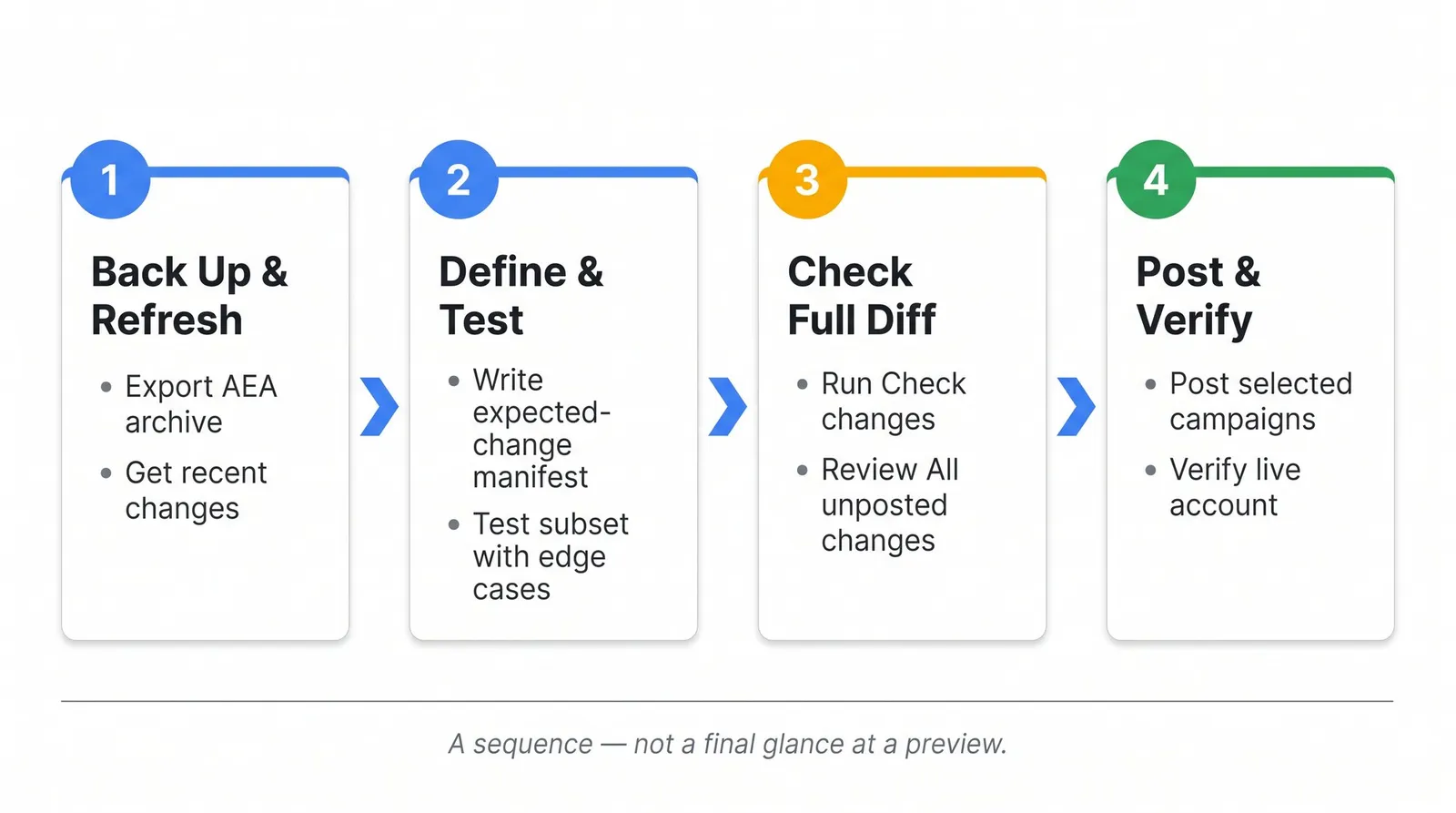
Phase 1: Back up and refresh the starting state
1. Check the installed version against Google’s current release notes. The 2.12 notes describe additional Performance Max asset support; verify that your particular operation is supported before preparing a large change.
2. Export an AEA archive. Google distinguishes three useful file types in its import and export documentation:
| Format | Use it for | Don't treat it as |
|---|---|---|
| CSV | Spreadsheet edits and imports | A complete restorable account archive |
| AES | Sharing proposed Editor changes with another user | A universal lossless backup |
| AEA | Archiving an account copy before risky work | A collaborative spreadsheet format |
3. Get recent changes. Editor offers a Basic retrieval and a More data retrieval. Google's recent-changes documentation explains the difference. Basic prioritizes editable account structure. More data brings in additional fields such as performance-related information, approval data, Quality Score, and bid estimates. Use More data when your QA depends on those fields.
4. Resolve conflicts. If your local copy and the online account have both changed, use the conflict-review process. Don't let a stale local edit win simply because it was prepared first. Google provides a separate recent-change review workflow for comparing account state.
Phase 2: Define the expected change and test it
Write an expected-change manifest before importing:
- Accounts affected
- Campaigns affected
- Entity type
- Expected number of new items
- Expected number of modified items
- Fields allowed to change
- Fields that must remain untouched
- Intended posting scope
Then test a representative subset. Pick one account and one campaign that contain the real edge cases: existing values, blank optional fields, unusual campaign types, rows expected to update, and rows expected to create. Testing the first ten rows is weak if those ten rows are all structurally identical.
After an import, inspect whether Editor classifies each item as new or modified. Unexpected creations are a reason to check identifiers, matching fields and the chosen import mode before keeping the proposed changes.
Phase 3: Check the full unposted change set
Run Check changes and interpret the colors correctly:
- Red: blocking error. The item can't post until corrected.
- Yellow: warning. It may be postable, but it still requires judgment.
- Green after checking: the item passed the checks Editor performed.
Google's error and warning guidance also makes an important point: Editor doesn't catch every possible policy or editorial problem. Green isn't a business approval.
Now open All unposted changes and compare the full local diff with your manifest. A narrow campaign filter can hide unrelated edits that remain queued locally.
Phase 4: Post a limited scope and verify it
Google lets you post all campaigns or post selected campaigns. For a migration, account restructure, or risky import, post a limited campaign set first.
Save the detailed result report. The posting dialog provides campaign-level outcomes, can be paused and resumed, and leaves failed changes visible for correction. A partial success isn't a failed workflow. It is a reason to correct and repost only the remaining items.
Finally, verify the live Google Ads account:
- Created and modified counts
- Statuses
- Budgets and bidding strategies
- Locations and languages
- Final URLs, tracking templates, and suffixes
- Assets and asset associations
- Conversion settings
- Approval state
- Fields that Editor doesn't expose
Only after that verification should you retrieve recent changes again and align the local copy with the live state. This process feels slower than pressing Post immediately. It is much faster than repairing a large ambiguous change.
Save, Check or Post? Know Which State Changed
| Action | Effect | Next Check |
|---|---|---|
| Local edit or import | Changes the working copy or proposed changes | Review the local difference |
| Check changes | Evaluates the change set for reported issues | Resolve errors; review warnings and approval |
| Share proposed changes | Hands off a reviewable proposal | Confirm which proposal the reviewer approved |
| Post | Submits the selected scope to Google Ads | Read the outcome and inspect the live objects |
Keep the input file, account ID, intended scope, reviewer and posting result together. If a post partly succeeds, identify the remaining failures before submitting again.
Which Google Ads Editor bulk-editing method should you use?
People often call every spreadsheet-driven change a bulk upload. Editor actually offers several paths, and they don't carry the same matching behavior.
| Method | Best for | Main risk |
|---|---|---|
| Direct multi-select | One shared value across a visible selection | Selection or filter is broader than intended |
| Advanced actions | Find/replace, append, capitalization, URLs, bids, statuses | Transformation matches more rows than expected |
| Make Multiple Changes | Pasted spreadsheet rows and repeated builds | Wrong destination mode replicates rows |
| CSV import/export | Complex updates, offline QA, multiple types or accounts | Identity and blank/clear semantics are misunderstood |
| Copy or Copy shell | Reusing structures within or between accounts | Source-specific settings survive the copy |
Edit a visible selection directly
Use this when the new value is identical for every selected row: pause a controlled set, apply a label, change a shared bid, or update one common URL setting. Its advantage is visibility. You can see the rows before editing.
Its weakness is also visibility. A filter can make a selection look precise while still including more entities than intended. Write down the expected row count and compare it with the selected count before editing.
Use advanced actions for repeatable transformations
Editor includes advanced bulk-edit tools for find and replace, appending text, changing capitalization, changing URLs, and adjusting bids. Google's Find and Replace documentation covers case matching, whole-word matching, and capitalization preservation.
An empty replacement in Find and Replace removes the matched text. That is a different mechanism from the [] deletion syntax used in CSV imports.
Preview matches, apply locally, then inspect the complete unposted diff. Never use a global transformation as a substitute for defining scope.
Paste structured rows with Make Multiple Changes
Make Multiple Changes accepts tab-separated or comma-separated spreadsheet data pasted directly into Editor. It is useful for campaign builds, keywords, negatives, responsive search ad components, and settings assembled in Sheets.
The consequential choice is the destination mode. Your pasted rows can contain their own campaign and ad-group columns, or Editor can apply them to selected destinations. If you choose the second mode with several destinations selected, you can replicate every pasted row into every selected campaign or ad group.
Import or export complex changes with CSV
CSV is the most flexible route because it can preserve exported identifiers, support spreadsheet QA, cover many entity types, and work across accounts. It is also the route where a visually empty cell can mean something entirely different from a clear operation.
Copy or move campaign structures safely
Editor can copy structures between accounts. Google's campaign copy guidance describes Copy shell, which transfers campaign settings without all campaign contents.
Every destination still needs an audit. A copied structure can carry:
- Tracking templates for the wrong domain
- Bids built for another market or currency
- Locations and languages that shouldn't transfer
- Account-specific conversion goals
- Assets or audiences that don't exist in the destination
- Labels and naming conventions from the source account
Copying gives you a starting structure. It doesn't certify the destination configuration.
All these methods can be safe. CSV simply hides more meaning inside the data, so it deserves a proper contract.
How to prevent duplicates and accidental clears in CSV imports
A good CSV workflow begins with a simple assumption: Editor is a parser making identity and field-level decisions row by row. Your spreadsheet isn't self-explanatory.
Rule 1: Start with a fresh Editor export
The safest schema is the one your current Editor version exported from the current account. Google's CSV format guidance recommends a header row, one item per row, and recognized column names.
Export the entity type you intend to change. Keep its parent and identifying columns. Edit a copy. Rebuilding a large header set from memory creates avoidable mapping risk.
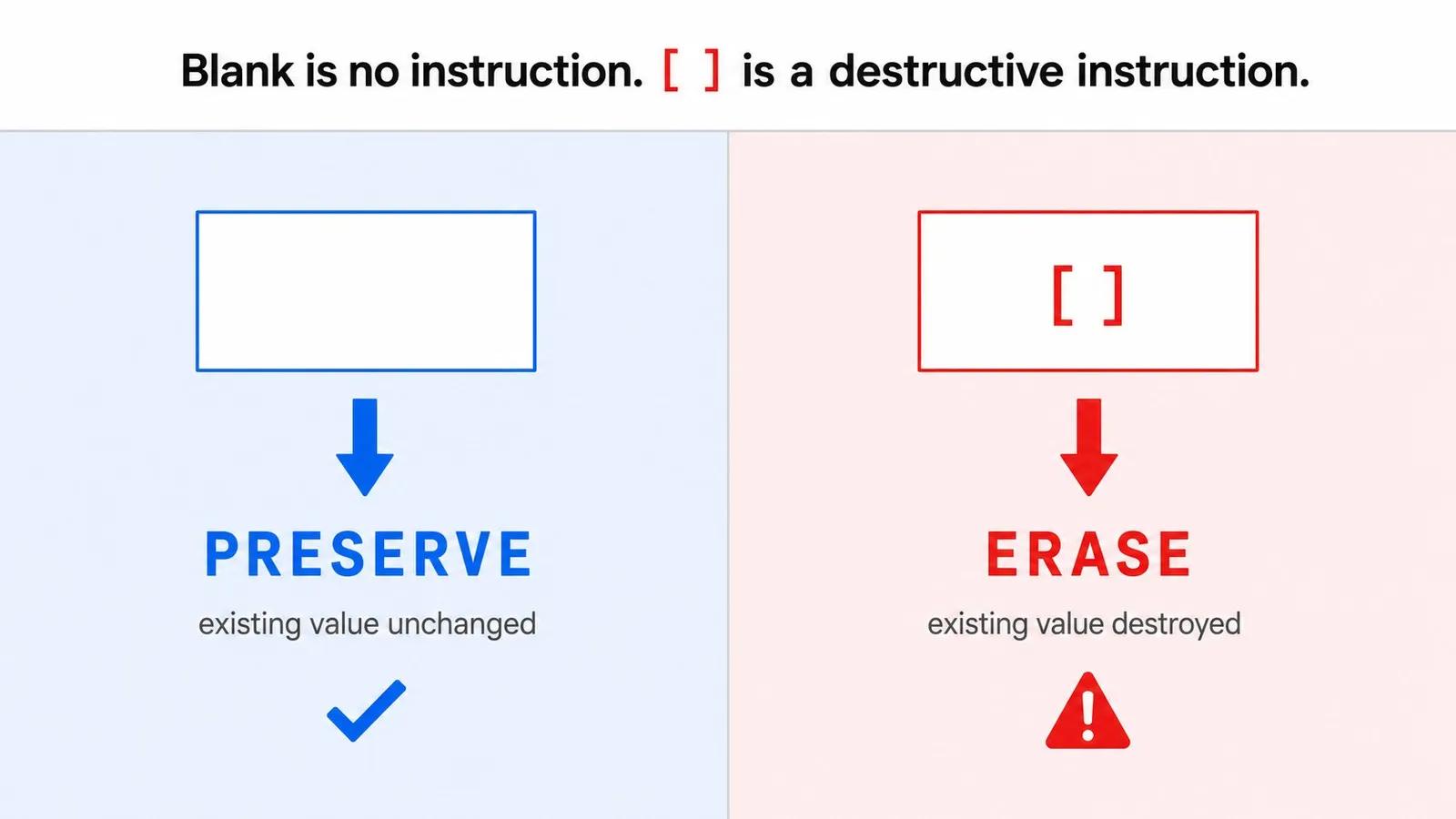
Rule 2: Treat blank cells and [] as different commands
This is the rule worth memorizing:
| Imported value | Meaning |
|---|---|
| Blank cell | Leave the existing value unchanged |
[] | Erase the existing value, where clearing is supported |
| Nonblank value | Set or replace the field |
Google documents the distinction in its CSV import rules.
Campaign,Final URL suffix
Brand Search,
Generic Search,[]
That file means:
- Brand Search: preserve the current suffix.
- Generic Search: remove the current suffix.
Spreadsheet cleanup can corrupt this meaning. A formula that turns empty strings into [], or an export process that drops brackets, changes the operation without changing the apparent business intent.
Critical distinction: Blank is no instruction.
[]is a destructive instruction.
Rule 3: Preserve identity fields to update instead of create
Editor uses entity-specific identifying fields to decide whether a row matches an existing item. There is no single required-column list that works for every entity.
For a keyword, the identifying combination includes:
- Campaign
- Ad group
- Keyword text
- Match type
Campaign,Ad group,Keyword,Match type,Final URL
Brand Search,Running Shoes,running shoes,Phrase,https://example.com/running
If those identifying values match a downloaded keyword, Editor can treat the row as an update. If the campaign spelling, ad-group name, keyword text, or match type differs, the row may become a new keyword.
The same principle applies elsewhere, but the fields differ by entity. Export the exact type and inspect the preview. If an operation expected 240 modifications and Editor shows 240 new items, reject it. The import has already told you the contract is broken.
Rule 4: Use #Original to identify renamed items
With the Include original columns preference enabled, exports can contain headers ending in #Original.
Editable field#Original,Editable field
Old value,New value
The original column retains the last-downloaded value. The unsuffixed column contains the replacement. Google's #Original documentation explains its matching and version-history role.
It doesn't preserve Quality Score, prevent a learning reset, guarantee CPC stability, or create a measurable performance benefit. Those claims aren't supported by the Google documentation reviewed.
Rule 5: Review every mapped and ignored header
Google says English headers can be recognized despite differences in capitalization, spaces, and underscores. Campaign Status, campaign_status, and capitalization variants can map to the same field.
That flexibility isn't a reason to skip mapping review. It is a reason not to reject a valid file simply because the header style changed. Inspect every column marked Not importing, and confirm that normalized headers haven't created a duplicate mapping.
Rule 6: Separate reference columns from writable fields
Some exported fields are reference data, not import targets. Editor can ignore values for categories such as:
- Quality Score
- Approval status
- Performance statistics
- Bid estimates
- Image dimensions
- Suggested changes
A file can import successfully while those columns do nothing. Separate the writable change set from the QA columns you keep for review.
Rule 7: Keep one entity in each row
A CSV can contain more than one entity type, but each row still represents one item at the relevant level. Google's broader import format documentation notes practical conventions such as a first-row header, YYYY-MM-DD dates, supported list separators, valid URL formatting, and limits for custom parameters.
Don't mix a campaign-level intention and an ad-level intention into one ambiguous row. Parent columns must identify where the entity belongs.
Rule 8: Audit defaults after creating an entity
If a CSV creates a campaign without every supported setting, Editor can apply defaults. A successful import doesn't prove the campaign is production-ready.
Audit:
- Status
- Budget and strategy
- Networks
- Location and language
- Start and end dates
- Conversion goals
- Tracking settings
- Brand controls
- Final URL behavior
- Asset associations
Rule 9: Distinguish account-level assets from shared assets
Google documents a specific asset convention: <Account-level> in the Campaign column identifies an account-level association, while blank campaign and ad-group cells can represent a shared asset. A blank parent cell isn't always missing data.
Rule 10: Use local file paths for image imports when required
For some image-asset imports, the image value is a path to a local file rather than a public URL. Google's image import guidance is worth checking before pasting a CDN URL into a field that expects a file reference.
Rule 11: Match URLs by protocol, path, and field
Current URL workflows include search and replace, append operations, import settings, account-level tracking templates, final URL suffixes, and the 2.12 Link Check replacement flow.
In Link Check replacements, trailing slashes are ignored for matching, but protocols are distinct. https://example.com/page can match the trailing-slash version. It should not be assumed to match http://example.com/page.
Rule 12: Calculate multi-account replication before importing
Editor supports multi-account CSVs with an Account or Customer ID column. Google's multi-account import documentation describes three materially different behaviors:
- Use the account information contained in each row.
- Restrict processing to accounts selected in Accounts Manager.
- Apply every row to every selected account.
The third mode is replication. If 500 rows are applied to six selected accounts, your intended 500-row job may become 3,000 account-row operations. Put that multiplication in the expected-change manifest before processing. The import contract is now explicit. That makes practical editing examples much easier to reason about.
Google Ads Editor bulk-editing examples you can audit
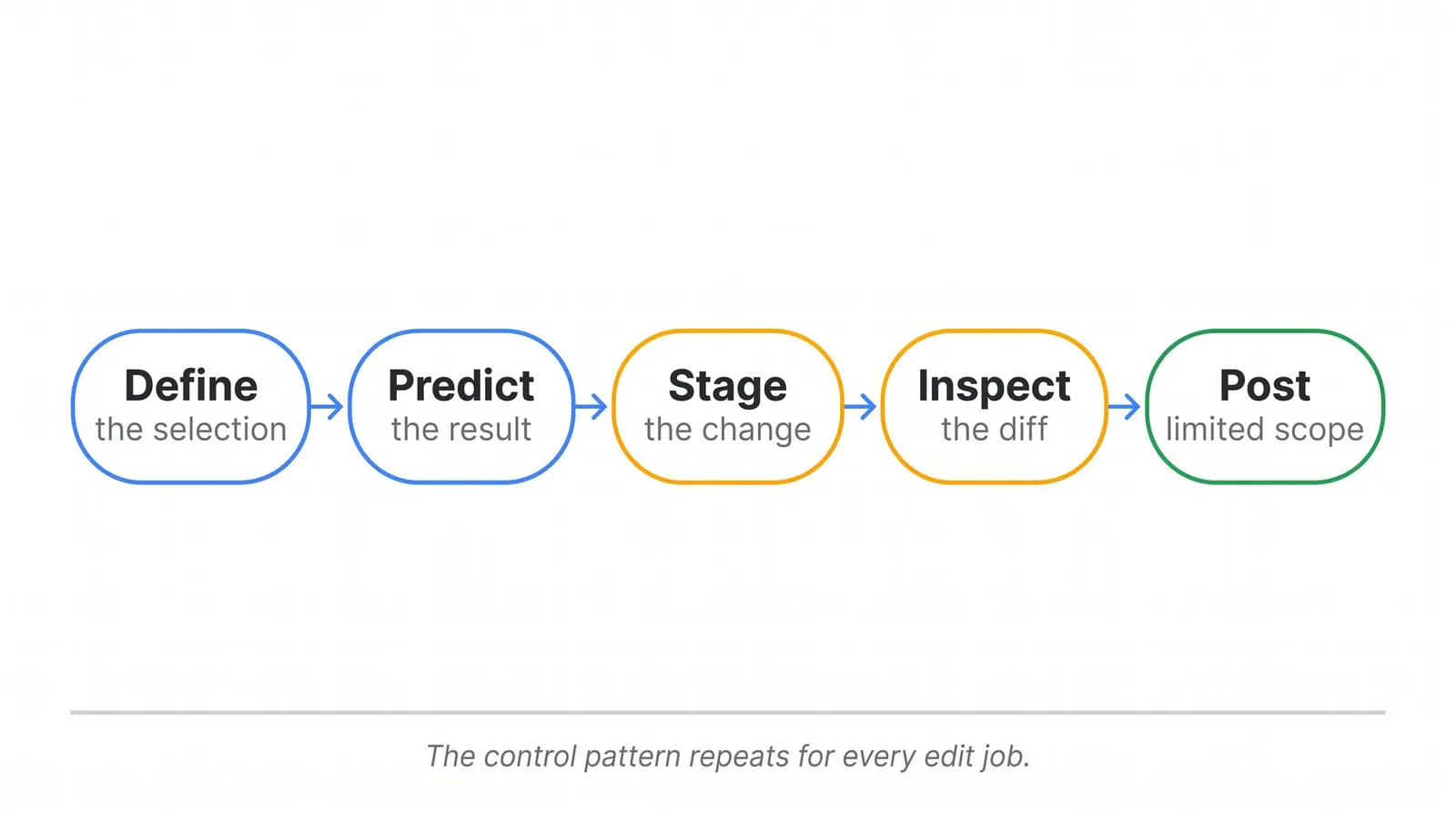
The mechanics change by job, but the control pattern stays consistent: define the selection, predict the result, stage the change, inspect the diff, and post a limited scope when the downside is meaningful.
Add final URL suffixes without overwriting values
Suppose only campaigns without a governed suffix should receive utm_source=google&utm_medium=cpc. Start with an export that includes the identifying campaign fields and the Final URL suffix column. Put the new suffix only on rows you intend to change. Leave the other cells blank.
Campaign,Final URL suffix
Brand Search,
Generic Search,utm_source=google&utm_medium=cpc
Competitor Search,
Blank cells preserve the current value. They don't erase it. During preview, the expected result is one modified campaign and no new campaigns.
If the goal is to remove an existing suffix, the operation is different:
Campaign,Final URL suffix
Generic Search,[]
That distinction is small on the sheet and large in the account. Search the file for every [] before importing.
Replace a migrated domain across the right scope
For a domain migration, direct URL transformation is usually easier to inspect than rebuilding full entities in a CSV. Select the exact campaigns and entity types, then use Editor's URL or Find and Replace tools to replace the old domain with the new one.
The QA pass matters more than the replacement itself:
- Compare HTTP and HTTPS separately.
- Check paths, query strings, tracking templates, and final URL suffixes as different fields.
- Confirm that display URLs or account-specific tracking values weren't changed unintentionally.
- Review the count of matched URLs against the migration manifest.
Use a representative campaign first. Then open All unposted changes and inspect the resulting URLs rather than trusting the match count alone.
Add negative keywords to the intended level
Make Multiple Changes works well when the spreadsheet already contains Campaign, Ad group where applicable, Keyword, and Match type columns. The destination choice decides whether those rows use their own parent columns or replicate into selected campaigns.
Before keeping the proposed changes, answer two questions:
- Does the number of new negatives match the sheet?
- Are they attached at the intended campaign or ad-group level?
An accurate keyword list in the wrong destination is still a bad import.
Update responsive search ads without creating duplicates
Start from a current export of the RSA entities. Preserve the identifying and parent fields, then change only the intended headline or description columns. If an editable value is involved in matching, retain the corresponding #Original column where the export provides it.
Don't use retired expanded text ads as the model. Google documents the current limitation on creating or editing expanded text ads, while responsive search ads remain the practical Search example.
The import preview should classify the rows as modified, not new. If new ads appear unexpectedly, reject the proposal and compare the identity fields with a fresh export.
Copy a campaign shell without copying bad assumptions
Copy shell is useful when you want campaign settings without the complete set of contents. After pasting into the destination, treat the shell as an untrusted template until these fields have been checked:
| Destination check | Why it matters |
|---|---|
| Currency and budget | Source economics may not transfer |
| Bidding and conversion goals | Account-level strategies and goals may differ |
| Locations and languages | A copied market can be wrong by default |
| Networks and dates | Inherited settings can activate an unintended flight |
| Tracking and final URLs | Source domains and templates can leak into the destination |
| Assets, audiences, and labels | References may be unavailable or client-specific |
Copying saves construction time. It does not remove destination QA.
Raise manual bids without breaking your caps
Editor can change bids across a selection, including fixed or percentage adjustments where supported. Define the eligible selection first, then apply the increase with the intended minimum or maximum controls.
Review outliers after the transformation. A percentage change can be mathematically correct and commercially wrong when the starting bids vary widely.
Apply a review label to the right rows
Labels are a low-risk way to mark a staged cohort before posting or handoff. Select the exact rows, apply the label, and verify the selected count. A label can then support a second review filter, but it shouldn't replace the All unposted changes view.
Repair broken links with Link Check 2.12
Version 2.12 adds a Link Check Find and Replace workflow that can accept replacement pairs from a CSV column or the clipboard. The matching rule ignores a trailing slash but keeps protocol differences. That means an HTTPS source and an HTTP source need separate treatment.
For a large repair, keep a two-column worksheet containing the original and replacement URL, run the job on one account, and compare the modified count with the number of source URLs actually present. Only then expand the scope.
These examples show the practical value of the contract: the edit method changes, but the operator always knows what should be new, modified, preserved, or cleared.
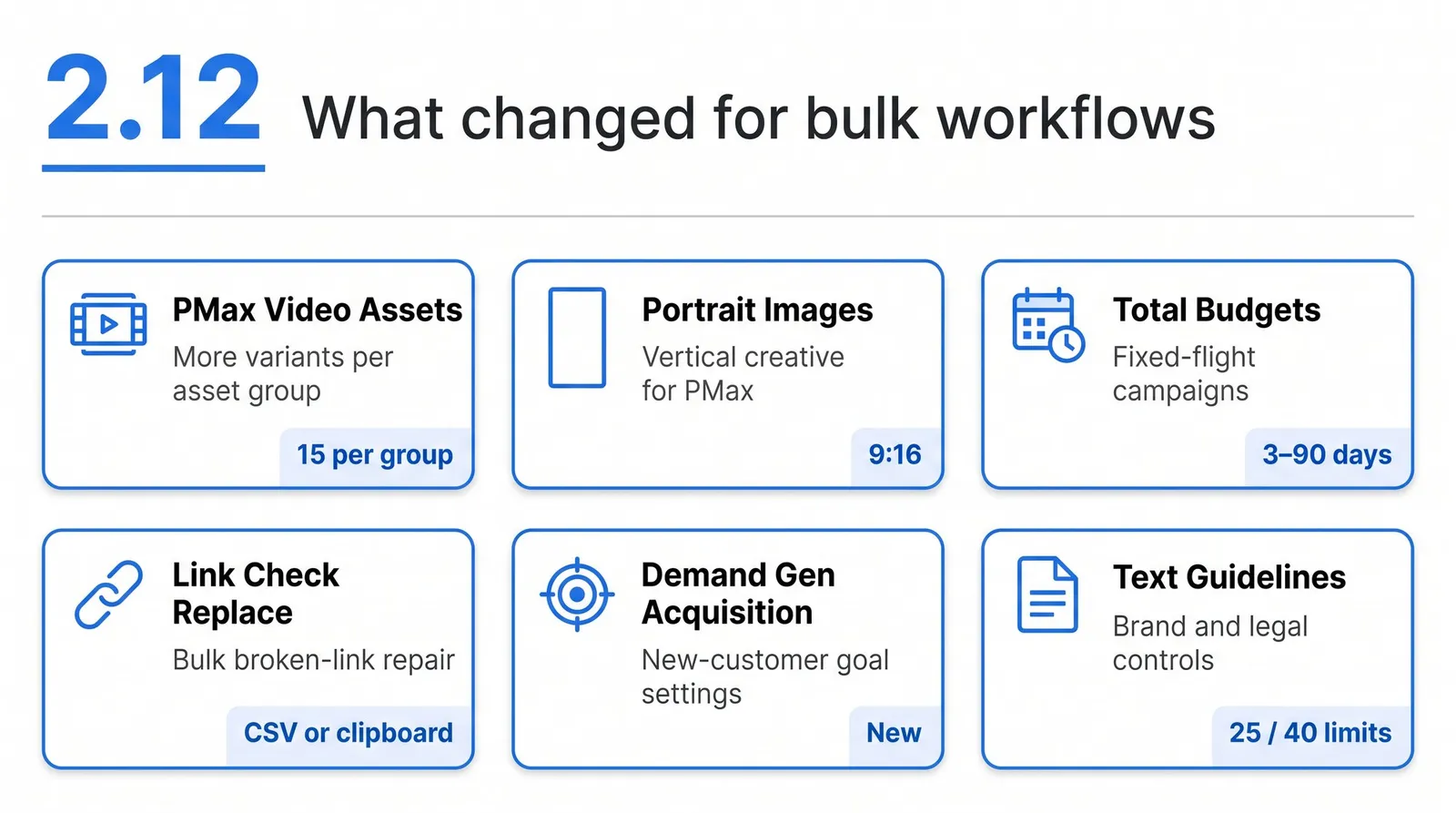
What Google Ads Editor 2.12 changed for bulk workflows
Google's official 2.12 release notes make this more than a Search campaign utility. The release was also announced publicly on March 17, 2026.
| 2.12 capability | Documented detail | What changes operationally |
|---|---|---|
| PMax video assets | Up to 15 videos per asset group | More variants can stay inside one asset group |
| PMax portrait images | 9:16 tall portrait marketing images | Vertical inventory can be prepared natively |
| Non-skippable Video | 6-, 15-, and 30-second videos in one mix | Mixed-duration reach builds can be handled in Editor |
| Demand Gen acquisition | New-customer acquisition goals | Acquisition settings need to be included in QA |
| Demand Gen brand controls | Brand guidelines | AI-inferred brand elements can be reviewed and adjusted |
| Demand Gen hotel feeds | Hotel Center feed integration | Feed and property inputs join the campaign build |
| Demand Gen budget floor | $5 minimum daily budget for newly created campaigns | Templates below the floor need correction |
| Campaign Total Budgets | Search, Shopping, and PMax over 3 to 90 days | Fixed-flight promotions can use a total budget |
| Promotion Mode | Works with Campaign Total Budgets | Short high-demand periods have a dedicated setup |
| Video bid guidance | Calculated during copy and paste | Guidance reflects budget, duration, targeting, format, and estimated auctions |
| Text guidelines | Up to 25 term exclusions and 40 messaging restrictions per campaign | Brand and legal controls become explicit QA fields |
| Account-level URLs | Default tracking template and final URL suffix | Tracking governance can be standardized at account level |
| Final URL Expansion | Dedicated asset reporting | Automatically generated URL assets can be audited |
| Status visibility | Pending, Ended, and Draft shown separately | Filters can distinguish lifecycle states more precisely |
| Link Check replacement | CSV column or clipboard URL pairs | Broken-link repairs can span entities and accounts |
Recent context matters because many established tutorials predate the features that changed modern account work. Version 2.11 added PMax negative keyword lists, a PMax search-term report, scheduled link checks, broader multi-account CSV work, account-level exclusions, lead-form editing, and more previews. Version 2.10 added AI Max controls for Search, 9:16 Demand Gen images, partial asset downloads, cross-account Link Checker workflows, PMax setup support, and other automated-campaign controls.
There are still boundaries. Google's campaign support documentation and feature-parity information are safer references than a blanket claim that everything available in the browser is editable in Editor. Shopping structures and newer ad fields can still have limitations. Broader feature coverage raises the value of Editor, but it also increases the number of settings that can survive a campaign copy, inherit a default, or disappear when an unsupported field is touched. Freshness doesn't replace review.
How to review, post, and recover from Editor changes
The final screen before Post is not the final review. A reliable release process starts earlier, with the difference between new and modified items.
Confirm new versus modified items
After an import, compare Editor's classification with your manifest:
- Expected modifications should appear as modified.
- Expected creations should appear as new.
- Unexpected new rows point to an identity mismatch.
- Ignored columns need an explicit reason.
- Clear operations should correspond exactly to intentional
[]values.
Then inspect All unposted changes across entity types. A campaign filter or type view can hide local edits that are still queued.
Read red, yellow, and green checks correctly
Red blocks posting. Yellow normally allows posting but requires judgment. Green means the item passed the checks Editor ran. It does not mean the campaign fits your business rules, the landing page is correct, or an unsupported browser-only field will survive.
Google's checking workflow and posting guidance should sit beside your internal QA, not replace it.
Post selected campaigns before widening the scope
For risky work, choose selected campaigns first. Save the campaign-level report, verify the live account, then post the next cohort. Editor can pause and resume posting, and accepted rows can coexist with failed rows in a partial result.
After a partial failure:
- Save the report.
- Leave successful items alone.
- Correct the remaining bold or failed items.
- Recheck the reduced change set.
- Post only the failures.
That is safer than rebuilding and reposting the entire file.
Know what can and can't be undone
Undo, Redo, and Revert protect unposted local work. Google's revert documentation is explicit that these controls apply before posting.
After a successful post, there is no universal one-click rollback for the whole operation. Recovery means preparing and posting a reversing change, restoring values from a trusted export or archive, or correcting the live account manually. An AEA archive helps reconstruct the prior state, but it doesn't turn a live post into a reversible transaction.
One warning deserves its own line:
If an ad contains a field supported in the Google Ads web interface but not in Editor, editing and posting that ad through Editor can strip the unsupported field.
Use the browser for those ads or fields. The safest recovery is avoiding the unsupported edit in the first place.
How to fix common Google Ads Editor bulk-editing failures
| Symptom | Likely cause | Shortest safe response |
|---|---|---|
| Duplicate campaigns, ads, or keywords | Identity columns didn't match the downloaded entity | Reject the proposal, compare parent and type fields with a fresh export, and confirm new versus modified counts |
| Blank didn't remove a value | Blank means preserve | Use [] only where clearing is supported |
| Existing data was erased | A formula or cleanup inserted [] | Search the source file for every bracket pair and restore from the last trusted state |
| Columns were ignored | Read-only, unknown, or mapped to Not importing | Review mapping and separate reference fields from writable fields |
| Local work disappeared | A full or partial download replaced local state | Inspect unposted work before refresh and create an AEA archive first |
| Local and online edits conflict | Another user or browser session changed the account | Get recent changes and resolve conflicts instead of posting stale data |
| An ad field disappeared | Editor didn't support a web-only field | Correct it in the browser and keep that field out of Editor edits |
| Copied campaign has bad tracking or targeting | Source-account settings survived the copy | Run the destination audit before posting |
| Portfolio strategy doesn't resolve | Destination name doesn't match exactly | Export the destination account and reuse the exact strategy name |
| Image import fails | The field expects a local file path | Use the documented image import method or a valid local path |
| Yellow warnings remain | The item is postable but unresolved | Read and assess each warning; don't equate postable with correct |
| Only some changes post | Google accepts some rows and rejects others | Save the report, correct failed rows, and repost only those rows |
| Rows land in the wrong campaigns | Wrong Make Multiple Changes destination mode | Reject the proposal and reprocess with the correct parent columns or selected destinations |
| URL replacement misses rows | Protocol, query, entity scope, or source value differs | Compare the literal source values and separate HTTP from HTTPS |
Public operator discussions are useful for understanding where confidence breaks, but they aren't the authority for mechanics. Practitioners describe a normal stack of spreadsheets, Editor, and the browser, recurring bulk-upload questions, duplicate campaign creation, and anxiety about keeping copy current in very large accounts. Others report slow posts or crashes after pressing Post. These reports show the problems people need help diagnosing. They don't establish that the application fails at a particular rate.
The same pattern appears in practitioner commentary about using deliberate friction before AI-generated changes reach an account, underused Editor features, custom rules before posting, and renames that create new asset groups. One cross-channel observation is especially revealing: operators want Editor-like simplicity outside Google. The common demand isn't hands-free automation. It is faster work with a visible review boundary.
The source corpus also preserved the original discussion URLs for bulk uploads, duplicate imports, browser versus Editor choices, slow posting, mixed tool stacks, large-account copy governance, posting crashes, and skepticism about full automation. The original asset-group rename discussion reinforces the same update-versus-create concern.
Google Ads Editor keyboard shortcuts for Windows
These shortcuts come from Google's official Windows quick reference. Mac users should use the official macOS shortcut reference.
| Action | Windows shortcut |
|---|---|
| Get recent changes, Basic | Ctrl+T |
| Get recent changes, More data | Ctrl+Shift+T |
| Check changes | Ctrl+K |
| Post changes | Ctrl+P |
| Import from file | Ctrl+I |
| Import from text | Ctrl+Shift+I |
| Make Multiple Changes | Ctrl+Shift+B |
| Find and replace | Ctrl+H |
| Append text | Ctrl+Shift+H |
| Change capitalization | Ctrl+Alt+H |
| Change URLs | Ctrl+U |
| Change bids | Ctrl+B |
| Undo | Ctrl+Z |
| Redo | Ctrl+Shift+Z |
| Revert | Ctrl+Shift+R |
The easily confused shortcut is Ctrl+Shift+T. It retrieves More data. It isn't a pending-changes view.
Shortcuts reduce hand movement. They don't reduce the need to define scope, which is why tool choice still matters more than keystroke speed.
When to use Editor, browser, Sheets, Scripts, API, or AdManage
The useful answer is a stack, not a winner.
| Tool | Use it when | Watch for |
|---|---|---|
| Google Ads browser | The change is small, live context matters, or the field is newer or unsupported in Editor | Repetition and a fragmented view of large structural work |
| Google Ads Editor | A human needs to stage, inspect, copy, repair, or import Google Ads entities at scale | Google-only scope and uneven parity with the web interface |
| Excel or Google Sheets | You need formulas, row generation, copy review, approvals, or data cleanup | A sheet isn't a safe publishing or identity-matching layer by itself |
| Google Ads Scripts | The operation should repeat according to code or a schedule | Maintenance, permissions, and less visual construction |
| Google Ads API | A software system must own the workflow | Development, authentication, quotas, testing, and ongoing maintenance |
| AdManage | Repeated launch inputs need reusable standards across accounts and paid-media channels | It shouldn't be positioned as a replacement for every native Google administration task |
Google documents bulk uploads in Scripts: a script can prepare data from Drive, Sheets, or Excel, preview the upload, then apply or discard it. The broader Google Ads API overview fits software-owned integrations rather than occasional human-operated edits.
Scheduled downloads, campaign schedules, and future posts aren't the same thing. Editor can schedule account downloads and edit campaign dates or ad schedules, but staged changes still require an explicit Post operation.
At AdManage, the durable bridge is narrower. Our Google Sheets documentation describes structured sheet-to-draft workflows and mapping for links, CTAs, and UTM parameters. Our documentation index and public documentation map show the published workflow surface, including Google Drive launch inputs. The AdManage homepage and pricing page position the product around multi-account, multi-channel launch operations and fixed-fee plans rather than a percentage of ad spend. Our comparison page spans direct launch-workflow tools and adjacent categories, so it should be read as a broad market map rather than a claim that every listed product solves the same job.
Public AdManage pages currently conflict on the exact Google campaign types available. For that reason, we won't make a campaign-specific support promise here. The conservative decision rule is enough:
Use Editor for the Google account edit. Consider AdManage when the recurring launch workflow across accounts and channels has become the bottleneck.
If your job is one structural edit in one Google account, use Editor. If approved creative, copy, naming, tracking, and cloud-media inputs repeatedly need to become launch-ready work across a wider stack, that is the point where workflow automation deserves evaluation. You can inspect the dedicated Google workflow page with the public-page discrepancy in mind, continue into the deeper Google Ads bulk-upload workflow, or review real launch-workflow case studies.
Build a change contract before you click Post
The point of Google Ads Editor isn't raw speed. It is controlled speed: a local change set, a visible diff, a check step, a limited post, and a live verification.
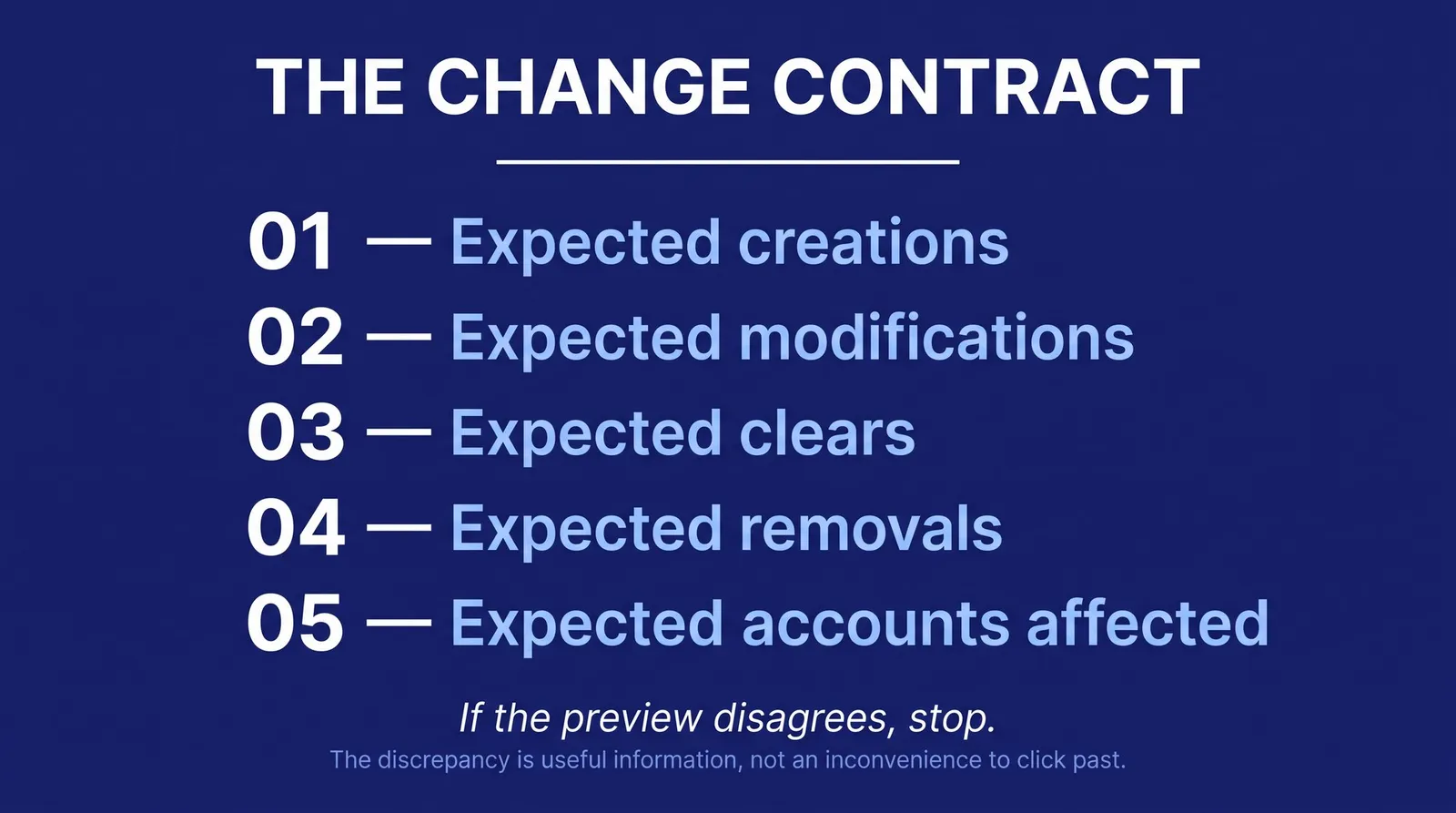
Before your next consequential change, write down five numbers: expected creations, expected modifications, expected clears, expected removals, and expected accounts affected. If Editor's preview disagrees, stop. The discrepancy is useful information, not an inconvenience to click past.
Our view at AdManage is simple. Native tools are strongest when their operating boundary matches the job. Editor is often the best answer for deliberate Google-only account surgery. A wider launch workflow becomes relevant only when repeated assembly and standardization, not the account edit itself, is consuming the team.
Start with the free native tool. Earn automation by first making the change contract explicit.
Google Ads Editor FAQs
Is Google Ads Editor free to use?
Yes. Google describes Editor as a no-cost downloadable application. Use the official Google download page rather than a third-party installer.
Can Google Ads Editor work offline?
You can edit downloaded account data offline. You still need a connection to sign in, download accounts, get recent changes, run some checks, post changes, and update the application.
Which Google Ads Editor version is current?
Google Ads Editor 2.12 was the newest version documented when this guide was verified on July 24, 2026. Recheck Google's current release list before publication or a high-risk operation.
Does a blank CSV cell preserve or remove a value?
For an existing writable field, blank normally means leave the current value unchanged. It doesn't mean remove the value.
How do you clear a field with a Google Ads Editor CSV?
Use [] where Google supports clearing that field. Search the entire file for bracket pairs before importing so a formula or cleanup step doesn't erase something unintentionally.
Why does a Google Ads Editor import create duplicates?
Editor didn't match the row's identifying fields to a downloaded entity. Compare the campaign, ad group, entity value, match or type field, and any exported original columns. Reject the import if rows expected as modifications appear as new.
How does the #Original column work?
It preserves the last-downloaded value used to identify the original item while the unsuffixed column carries the proposed replacement. It is a matching and version-history mechanism, not a performance guarantee.
How do you copy campaigns between Google Ads accounts?
Yes. You can copy a complete campaign or use Copy shell for settings. Audit tracking, budgets, bidding, targeting, dates, goals, assets, and labels in the destination before posting.
Can you undo changes after posting them?
Undo, Redo, and Revert apply before posting. After a successful post, you normally need to create and post a reversing change or restore the affected values from a trusted record. There is no universal one-click rollback.
Why can Editor remove an unsupported field?
The ad may have contained a browser-only field that Editor doesn't support. Google warns that editing and posting such an ad through Editor can strip the unsupported field. Correct it in the browser and keep that field out of future Editor edits.
When should you use CSV, AES, or AEA?
CSV is spreadsheet data for import and export. AES is used to share proposed Editor changes. AEA is the archive format used to preserve an account copy before risky work.
How does Google Ads Editor handle multiple accounts?
Yes. It can store multiple accounts, work through manager-account access, and process multi-account files. Pay close attention to the import mode that applies every row to every selected account.
Can you run Google Ads Editor on Linux?
Google's current requirements list Windows and macOS, not Linux. Compatibility layers or virtual machines are unsupported workarounds, which may not be appropriate for consequential client work.
When is Editor better than the Google Ads web interface?
Editor is usually better for large, staged, structural, and spreadsheet-driven changes. The browser is usually better for live analysis, small edits, disapprovals, and fields Editor doesn't expose.
Is Google Ads Editor different from Google Ad Manager?
No. They are different products. This guide covers the desktop application used to edit downloaded Google Ads accounts.
Official Google Ads Editor guides by task
Use this map when you need the original Google instruction for a specific task. It is organized by job, not as a detached references list.
Download, setup, and account access
- Google Ads Editor product page
- Google Ads Editor global product page
- Add or access an account
- Current system requirements
- How Editor stores account information
- Download and installation help
- General account setup task
- Additional setup guidance
Release notes and supported versions
Downloads, synchronization, and conflicts
- Get recent changes
- Partial account downloads and unposted work
- Review recent account changes
- Additional synchronization guidance
Bulk editing and transformation tools
- Bulk editing overview
- Find and replace
- Append text
- Change capitalization
- Change URLs
- Bid changes
- Make Multiple Changes
- Copy campaigns
- Move or paste campaign structures
- Additional copy task
- Duplicate and conflict task
- Bulk status task
CSV imports, exports, and assets
- CSV file format
- CSV import rules, blanks, clears, and original columns
- Review proposed import changes
- Import column task
- Multi-account CSV import and export
- General import task
- Import mapping task
- CSV, AES, and AEA import and export
- Export task
- Additional file import task
- Image asset imports
Change review, posting, and recovery
- All unposted changes
- Post changes and selected campaigns
- Revert local changes
- Posting task
- Check errors and warnings
- Campaign and feature support table
- Additional review task
Interface, search, and keyboard shortcuts
- Editor interface
- Search and filtering task
- Navigation task
- Account tree task
- Advanced search task
- Custom rules task
- Windows shortcuts
- Mac shortcuts
Campaign types, feature support, and reporting
- Supported campaign types and features
- Campaign task
- Performance and statistics task
- Expanded text ad limitations
- Reporting task
- Campaign status task
When these pages and the interface disagree, confirm that you are on the current Editor version and use Google's latest release notes as the freshness check.

About the author
Cedric Yarish
Co-founder of AdManage.ai