
What Is Meta Services on Android? Is It Safe to Disable?
You opened your app list, tapped Show system apps, and found something called Meta Services. You never installed it, it has no icon, and it may show up in your battery or data usage.
Here is the short answer: Meta Services is a preinstalled Meta system app that phone makers ship on many Android devices, often alongside Meta App Manager and Meta App Installer. It is not a virus. Most people who do not use Facebook, Instagram, Messenger or WhatsApp can disable it without noticing any difference.
The rest of this guide explains what it is, how it differs from its two siblings, and how to disable or remove it.
What is Meta Services?
Meta Services is the current name of the app that used to be called Facebook Services. Its Android package name still uses the old brand: com.facebook.services.
It is a background system component. It has no launcher icon and nothing to open, and you only see it in Settings → Apps with system apps visible. Manufacturers usually install it at the factory under preinstall agreements with Meta, which is why it can appear on a phone that has never had the Facebook app.
Meta does not publish a detailed technical description of the app. Community documentation, such as the Universal Android Debloater list, describes it as a service layer that supports Meta's apps and features on the device. Reporting on preinstalled Meta apps, such as 9to5Google's coverage of the OnePlus Open, notes that these system apps hold elevated privileges: they can install apps and updates and read device information.
Meta Services vs Meta App Manager vs Meta App Installer
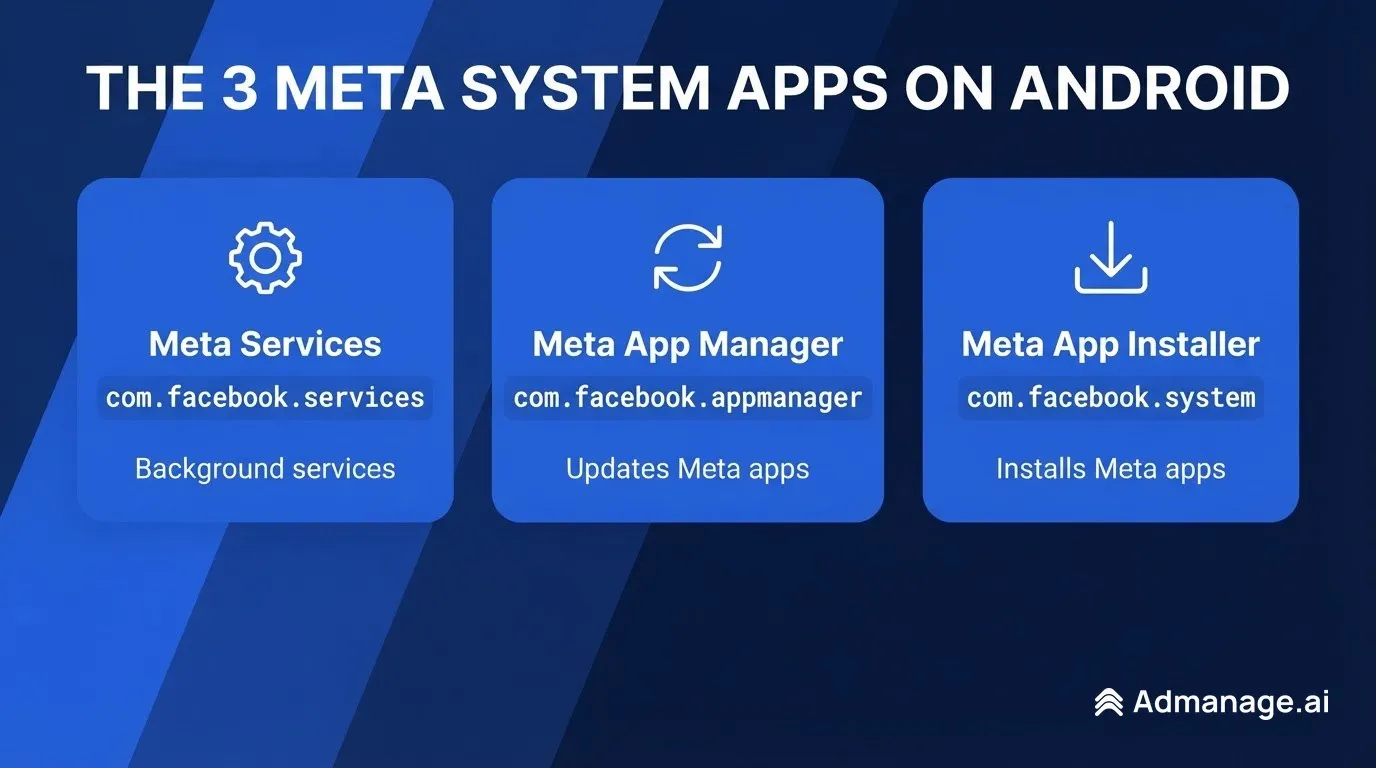
The three apps often appear together, and their names are easy to confuse. Each has a different package name:
| App name | Package name | What it is for |
|---|---|---|
| Meta Services | com.facebook.services | Background services that support Meta apps and features on the device |
| Meta App Manager | com.facebook.appmanager | Keeps installed Meta apps (Facebook, Instagram, Messenger) updated |
| Meta App Installer | com.facebook.system | Installs Meta apps, including from setup prompts, without the Play Store |
If you are specifically trying to deal with the updater, read our guide to Meta App Manager on Android. Most of the advice below applies to all three.
Why is Meta Services on my phone?
You did not install it. It came with the phone's system image. Meta has preinstall arrangements with several Android manufacturers, and the apps have been reported on Samsung, OnePlus, Motorola, Xiaomi and other brands. Whether your phone has them depends on the model and region.
Because it is a system app, a normal Uninstall button is usually missing or greyed out. On most phones you can still disable it.
Is Meta Services spyware?
It is not malware. It is a signed app from Meta, installed by your phone's manufacturer, and Android treats it like any other preinstalled system component.
The privacy concern is a different question. A system-level app from an advertising company runs in the background with elevated permissions. Meta has not fully documented what it does, so many users prefer to switch it off. That is a reasonable choice, and disabling it is reversible.
To see what it can access on your phone:
- Open Settings → Apps.
- Tap the filter or menu icon and turn on Show system apps.
- Search for Meta Services and open it.
- Check Permissions, Mobile data and Battery.
Background activity and a little data use are normal for a service. Unusually high battery or data use is a good reason to disable it.
Do I need Meta Services?
For most people, no.
- If you do not use any Meta apps, Meta Services has nothing to support. Disabling it is low risk.
- If you use Facebook, Instagram, Messenger or WhatsApp, those apps still install, run and update through the Google Play Store. Disabling Meta Services does not log you out or delete your data.
- If you use Meta features built into the phone itself, such as a manufacturer's account sync or a preloaded Meta app, test them after disabling and turn the service back on if something stops working.
What happens if I disable Meta Services?
Disabling it stops the app from running and hides it from normal use. Android keeps the files, so you can turn it back on at any time.
Users who have disabled it typically report no visible change, apart from the service no longer appearing in battery or data usage. You may need to reboot for it to stop completely.
If you rely on a Meta app, keep it updated through the Play Store. Turning off Meta App Manager as well removes the background updater, so updates arrive only through Google Play.
How to disable Meta Services on Android
The exact labels vary by manufacturer. On Samsung (One UI) and most other Android phones:
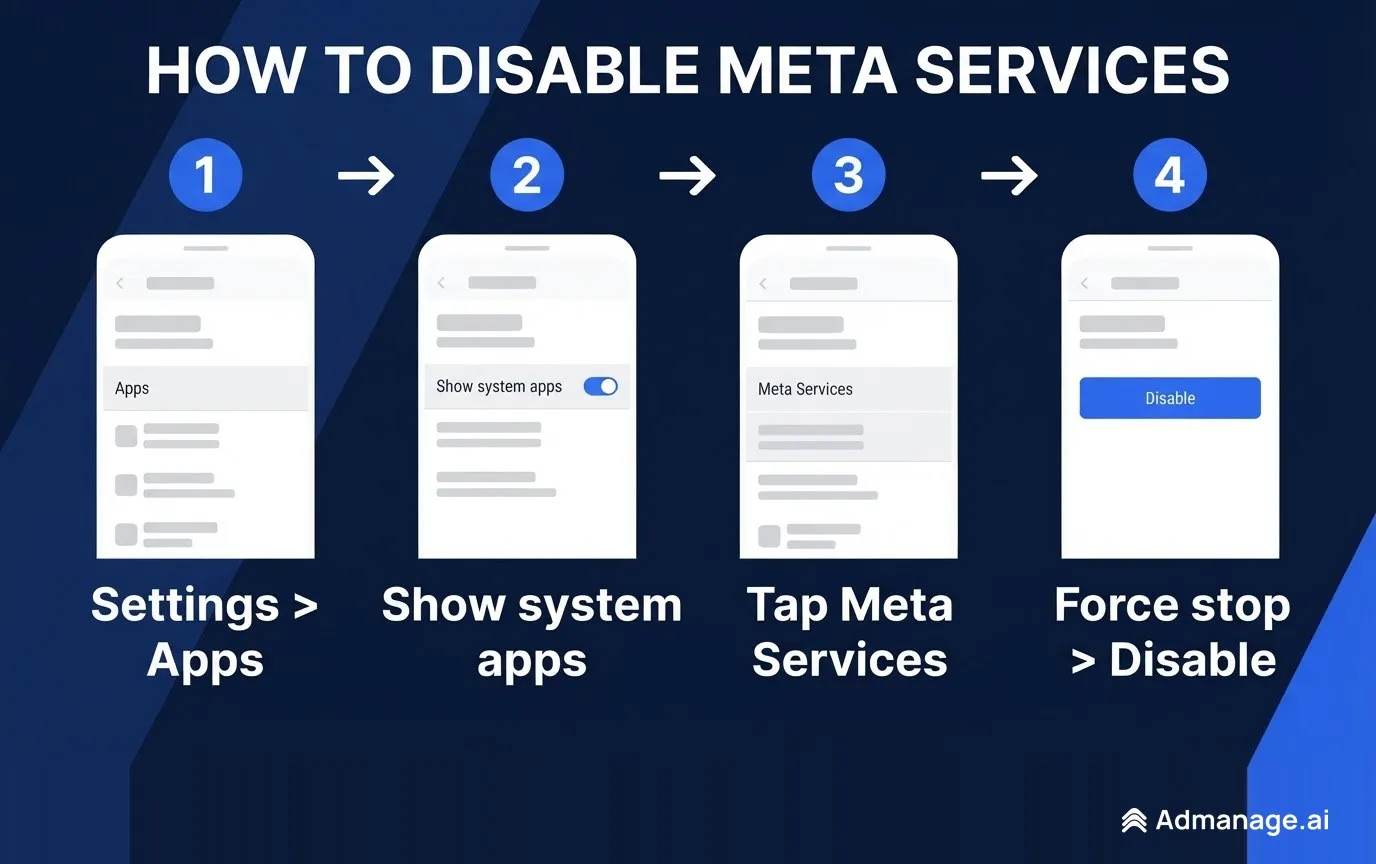
- Open Settings → Apps.
- Tap the sort or filter icon and enable Show system apps.
- Search for Meta. You may see Meta Services, Meta App Manager and Meta App Installer.
- Tap Meta Services → Force stop, then Disable.
- Repeat for Meta App Manager and Meta App Installer if you want all three off.
- Restart your phone.
If Disable is greyed out, your manufacturer has locked the app. You can still remove it for your user profile with ADB.
How to remove Meta Services with ADB (advanced)
ADB lets you remove a system app for your user account without rooting. It does not delete the app from the system partition, so a factory reset restores it.
- Enable Developer options (tap Build number seven times in Settings → About phone), then turn on USB debugging.
- Install Android platform tools on your computer and connect your phone.
- Run:
adb shell pm uninstall --user 0 com.facebook.servicesTo remove the other two as well:
adb shell pm uninstall --user 0 com.facebook.appmanager
adb shell pm uninstall --user 0 com.facebook.system
To restore Meta Services later:
adb shell cmd package install-existing com.facebook.servicesOnly remove packages you can identify. Removing unrelated system apps can break features on your phone.
Will Meta Services come back after I disable it?
A disabled app usually stays disabled. Some major system updates can re-enable preinstalled apps, so check Settings → Apps again after a big Android or One UI update. Apps removed with ADB stay removed for your user until a factory reset, or until you restore them with the install-existing command.
Frequently asked questions
Is Meta Services the same as Facebook Services?
Yes. Facebook Services was renamed Meta Services after Facebook's parent company became Meta. The package name is still com.facebook.services.
Why does Meta Services use data or battery?
As a background service, it can wake up to check for work, sync and contact Meta's servers. Small amounts are normal. If it uses noticeable battery or data and you do not use Meta apps, disable it.
Can I uninstall Meta Services on Samsung?
Usually not through the normal Uninstall button, because Samsung ships it as a system app. You can disable it in Settings → Apps, or remove it for your user profile with ADB.
Will disabling Meta Services break WhatsApp or Instagram?
These apps install and update through the Play Store, and users generally report that they keep working after Meta Services is disabled. If anything misbehaves, re-enable Meta Services from Settings → Apps.
Is Meta Services related to Meta Ads Manager?
No. Meta Services is a phone component. Meta Ads Manager is the web tool businesses use to run Facebook and Instagram ads, and it is not affected by anything you change on your phone.
Running Meta ads? This part is for you
If you found this page because you manage Facebook and Instagram ads, the phone apps above have no effect on your campaigns. What does affect your results is how quickly you can launch and test creative.
AdManage lets performance teams bulk-launch hundreds of Meta ads from a spreadsheet or folder in minutes, with naming conventions, UTMs and placements handled for you. Read our guides to checking your Meta Pixel and Meta's latest ads updates, or start a free trial.